
Electron in Practice: Creating icns Icons

Table of Contents

TL;DR
An app for converting PNG to icns on Mac has been created.
Feel free to use it: https://electron-icns.com/
Preface
When packaging an Electron app as a Mac application bundle,
using electron-packager as an example,
the default app icon after packaging looks like this:
icns
According to the electron-packager docs, you just need to pass the icon field.
However, on Mac you need to provide the icns format: https://electron.github.io/electron-packager/main/interfaces/electronpackager.options.html#icon
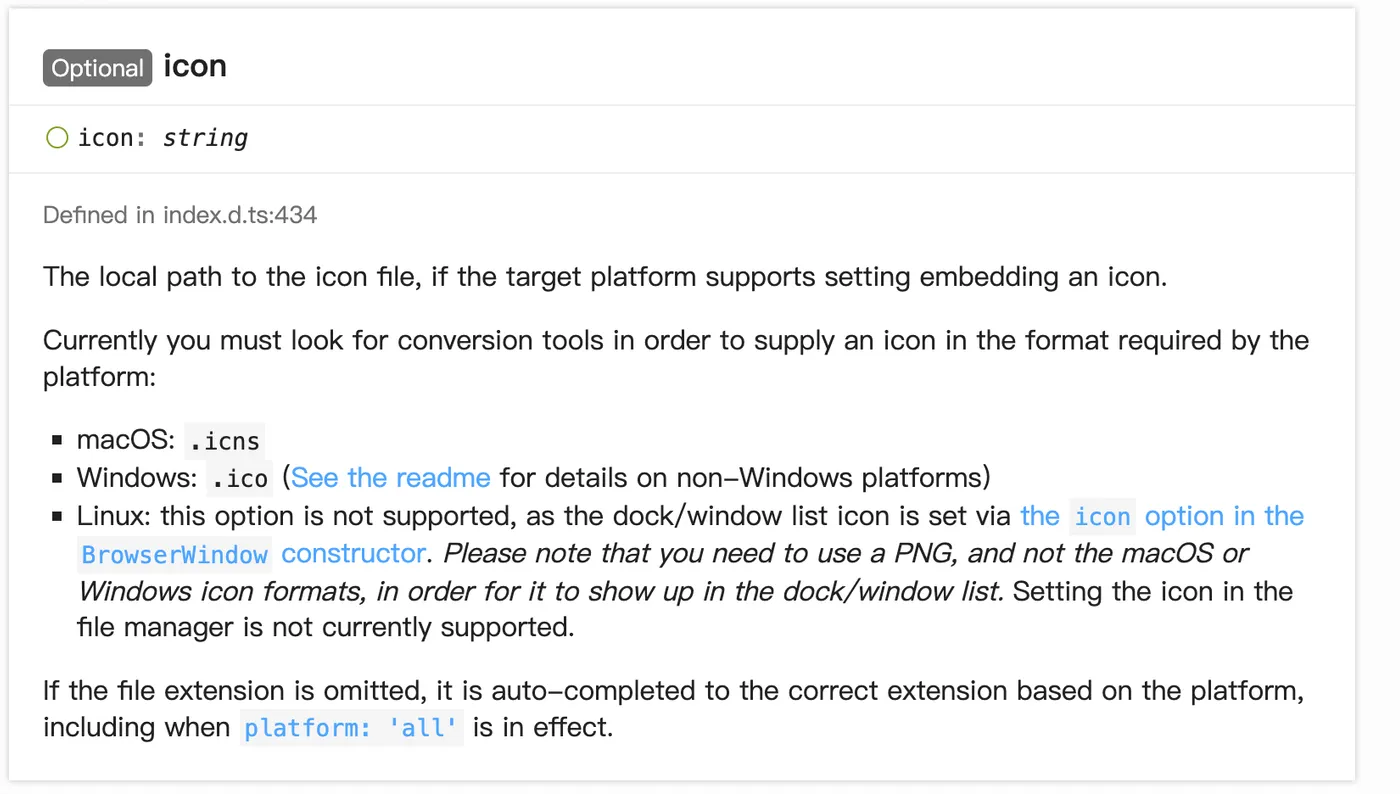
icns is an Apple-specific format that bundles icons of various sizes together.

Creating icns
You can manually create icns icons on Mac.
1. Prepare a 1024x1024 transparent PNG icon, e.g. pic.png, and place it in a folder.

2. Create a tmp.iconset folder, then run the following commands:
sips -z 16 16      pic.png --out tmp.iconset/icon_16x16.png
sips -z 32 32      pic.png --out tmp.iconset/icon_16x16@2x.png
sips -z 32 32      pic.png --out tmp.iconset/icon_32x32.png
sips -z 64 64      pic.png --out tmp.iconset/icon_32x32@2x.png
sips -z 128 128    pic.png --out tmp.iconset/icon_128x128.png
sips -z 256 256    pic.png --out tmp.iconset/icon_128x128@2x.png
sips -z 256 256    pic.png --out tmp.iconset/icon_256x256.png
sips -z 512 512    pic.png --out tmp.iconset/icon_256x256@2x.png
sips -z 512 512    pic.png --out tmp.iconset/icon_512x512.png
sips -z 1024 1024  pic.png --out tmp.iconset/icon_512x512@2x.png
After running, you’ll get icons in various sizes:
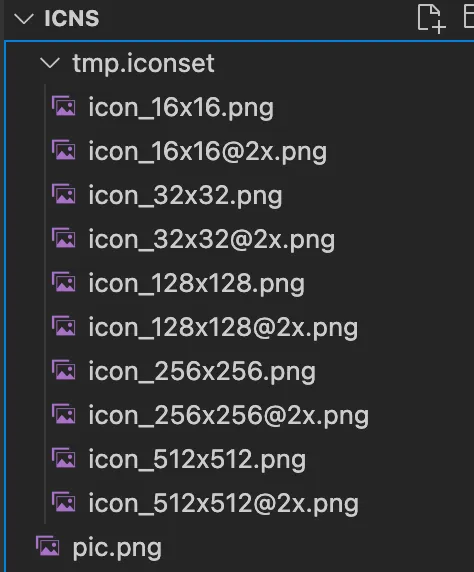
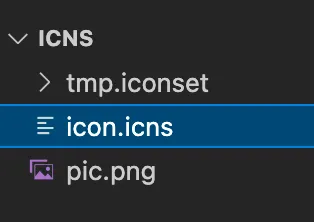
3. Run the iconutil command to create the icns icon:
iconutil -c icns tmp.iconset -o icon.icnsThis generates an icns icon file:
4. Pass this icns icon to electron-packager’s icon field and re-package.
You’ll see your custom icon displayed on Mac.
electron-icns
The manual method above is tedious. A library has been created for this — feel free to use it: https://code.insistime.com/#/electron-icns
Via npx
npx electron-icns /path/to/your/png/iconVia npm global install
npm i -g electron-icns

electron-icns /path/to/your/png/icon
Via devDependencies
Install:
npm i -D electron-icnsAdd a script to package.json:
{
  "scripts": {
    "icns": "electron-icns /path/to/your/png/icon"
  },
}
Via JS API
// cjs
const { icns } = require("electron-icns");

// mjs
import { icns } from "electron-icns";

// icns
const icnsPath = await icns(pngPath);
Result

Icon Too Large
After creating the Mac icns icon,
you may notice the icon appears larger than other app icons.
For example:
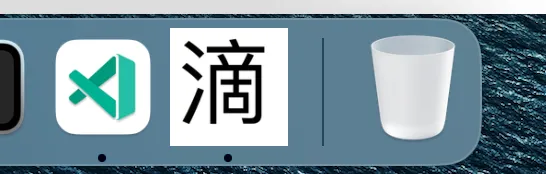
The reason is simple —
the icon was designed without padding.
If you open a normal icon and inspect it:
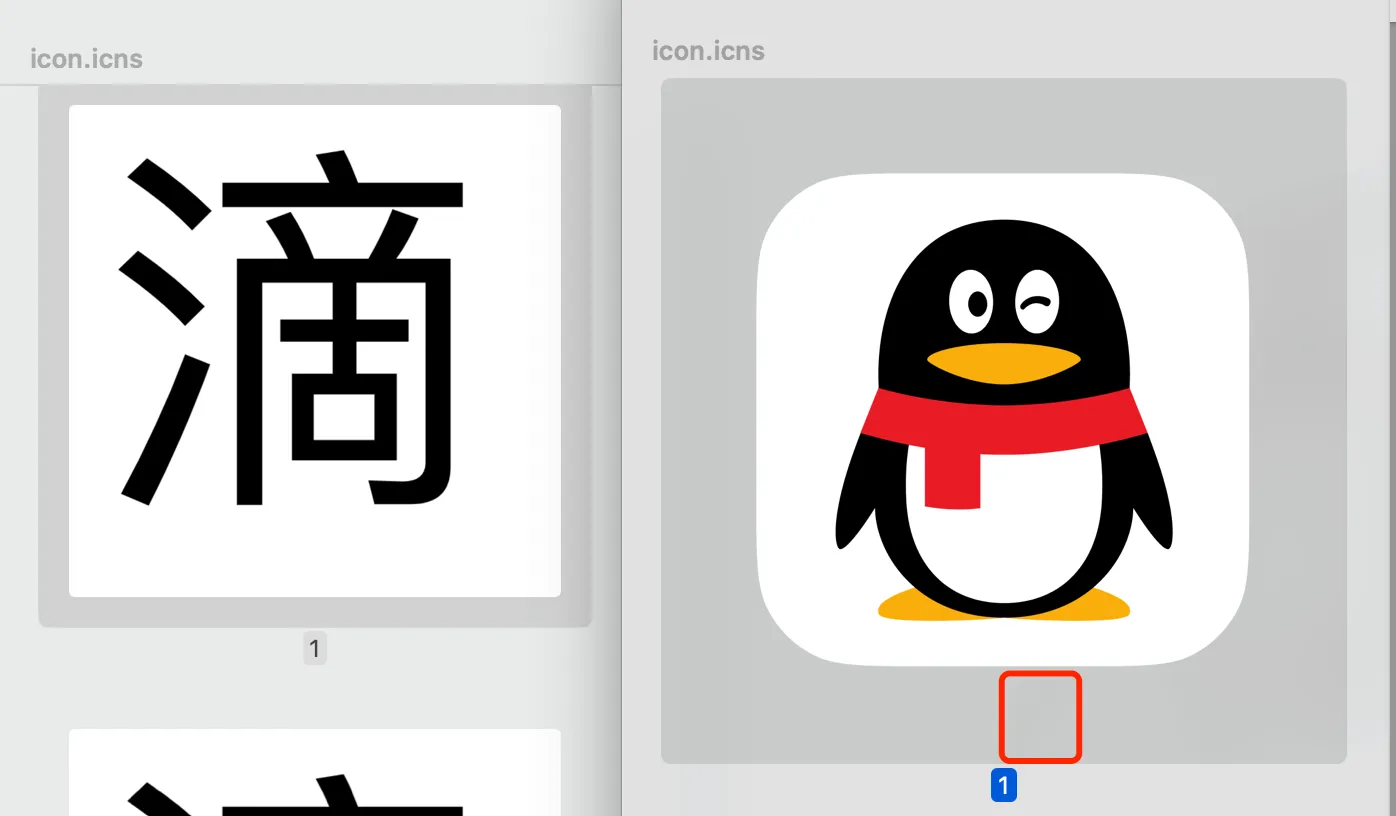
Roughly speaking,
if the PNG size is 1024x1024,
the padding should be about 98px.
Use this as a reference when designing your PNG,
then convert it to icns.
Summary
1. Introduction to icns
2. Manually generating icns icons using sips and iconutil commands
3. Using the electron-icns library to generate icns icons: https://code.insistime.com/#/electron-icns
Related Articles
Electron in Practice: Local Logging
Preface: After developing a local app with Electron, local logging is essential. It helps capture user actions and locate bugs. Local logs differ from real-time analytics — they are larger, more detailed, and not all information is suitable for reporting. Similarities and Differences with Node.js Logging: Writing local logs in Electron is similar to Node.js.
Electron in Practice: Registering Shortcuts
Preface: This article introduces how to register keyboard shortcuts in an Electron app. Main Process: Registering shortcuts in the main process is straightforward — just make sure to do it after app ready. Common key mappings: https://www.electronjs.org/docs/latest/api/accelerator. Also remember to unregister all shortcuts when the app quits.
Electron in Practice: Update Strategies
Preface: After developing a desktop app with Electron, the next question is how to update subsequent versions. This article introduces several update strategies. Electron Architecture: An Electron desktop app consists of several parts: the Electron runtime itself, the main process (Node.js and non-Node.js parts), and the renderer process.
Electron in Practice: Customizing Mac Menus
Preface: Previous articles covered developing an Electron app through to Mac packaging. Related articles: Learn Electron in One Article, Electron in Practice: Local Database SQLite, Electron in Practice: Managing Electron Projects with Monorepo, Electron in Practice: Mac Packaging, Electron in Practice: Registering an Apple Developer Account.
Electron in Practice: Package Size Optimization
Preface The previous articles covered developing an Electron app through to Mac packaging. Related articles: Learn Electron in One Article, Electron in Practice: Local Database SQLite, Electron in Practice: Managing Electron Projects with Monorepo, Electron in Practice: Mac Packaging, Electron in Practice: Register