
Electron in Practice: DMG Installer Customization
Preface
A dmg file is a common installer format on Mac.
The previous articles have already developed and packaged an application using Electron.
This article focuses on customizing the dmg installer.
Previous articles:
Electron in Practice: Local Database SQLite
Electron in Practice: Managing Electron Projects with Monorepo
Electron in Practice: Mac Packaging
Electron in Practice: Registering an Apple Developer Account
Electron in Practice: Mac App Signing and Notarization
App Icon Customization
A previous article covered how to create a Mac app icns icon.
Continuing from the code branch: https://github.com/uikoo9/dishi-monorepo/tree/mac-sign
The corresponding app icon looks like this:
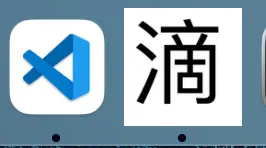
You will notice an issue: it is a bit larger than a typical Mac app icon.
The reason is simple. Compare it with a normal Mac app icon:
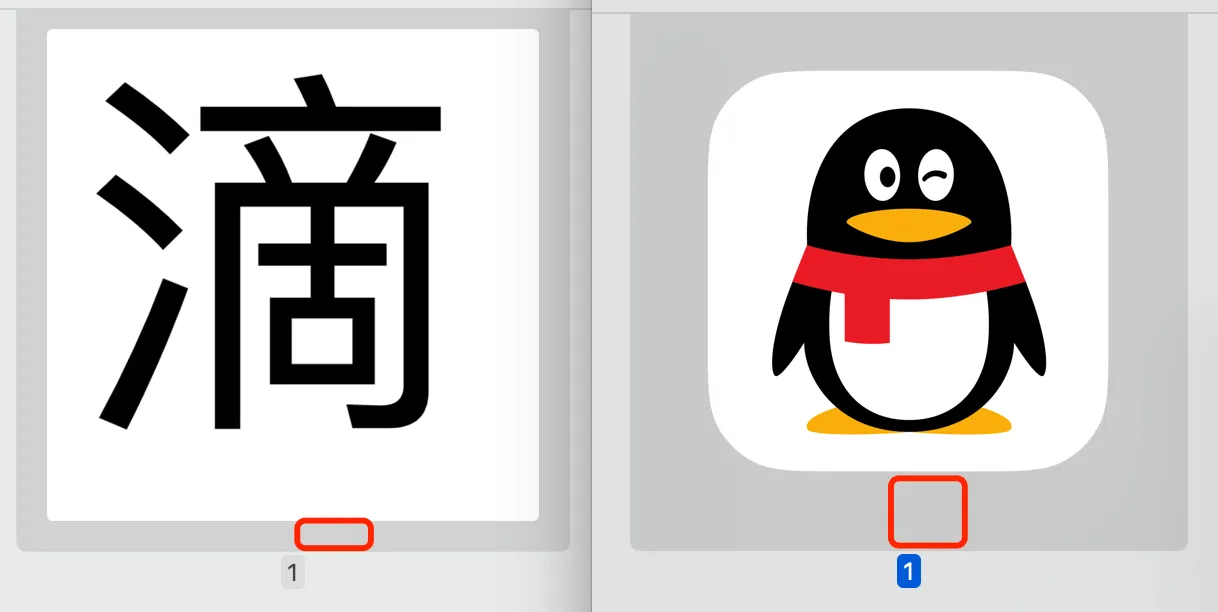
You can see the issue is that the two have different padding.
The correct padding is 96px margin for a 1024px canvas.
After modifying the icon with this ratio, the result looks like this:

Here is a recommended simple and useful online drawing tool:
https://www.suxieban.com/index.html#
Expected DMG Effect
Getting a bit off track. Let’s get back to dmg installer customization.
Let’s look at the expected dmg effect using another app as reference.
For example, WeChat for Mac:
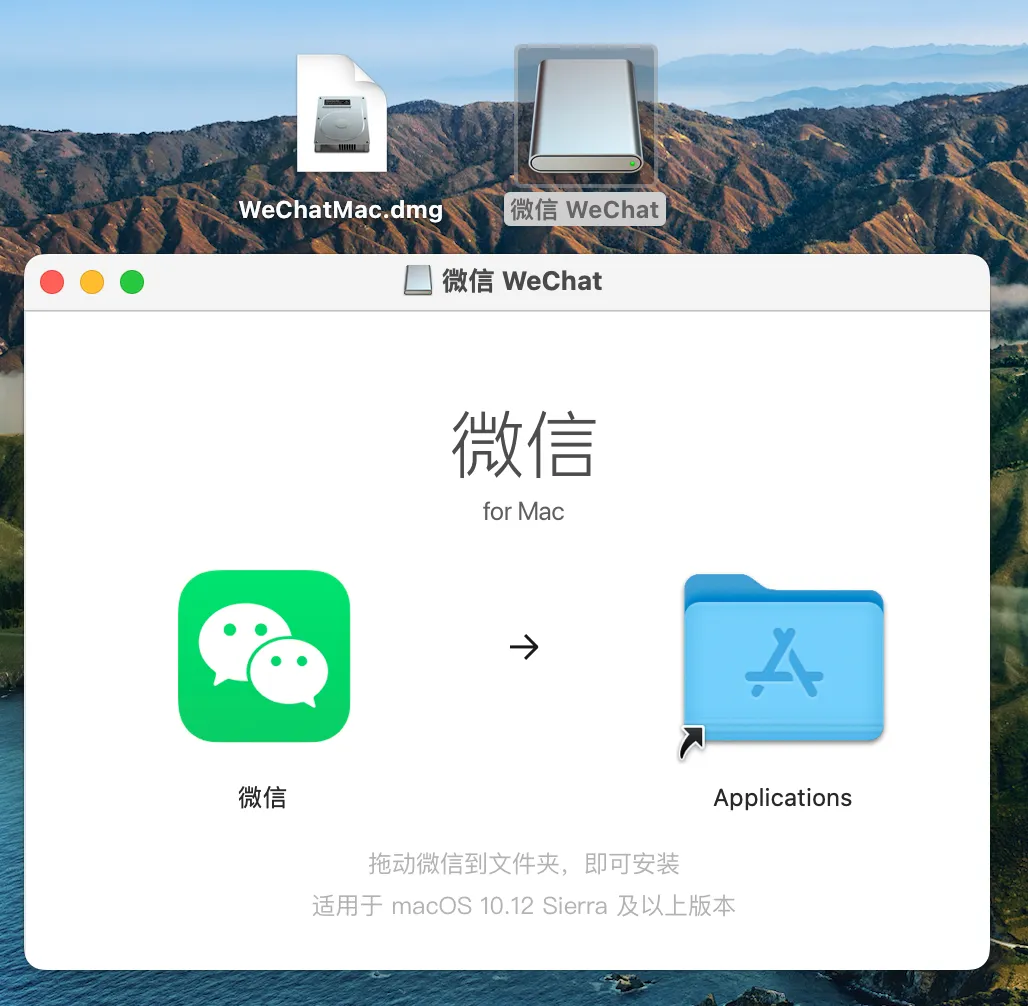
The dmg customization includes several parts:
-
The dmg file icon itself. We keep the default.
-
The icon shown after double-clicking the dmg to mount it, as shown on the right side above.
-
The view after mounting the dmg, as shown in the lower part above.
Here is the current app’s effect:
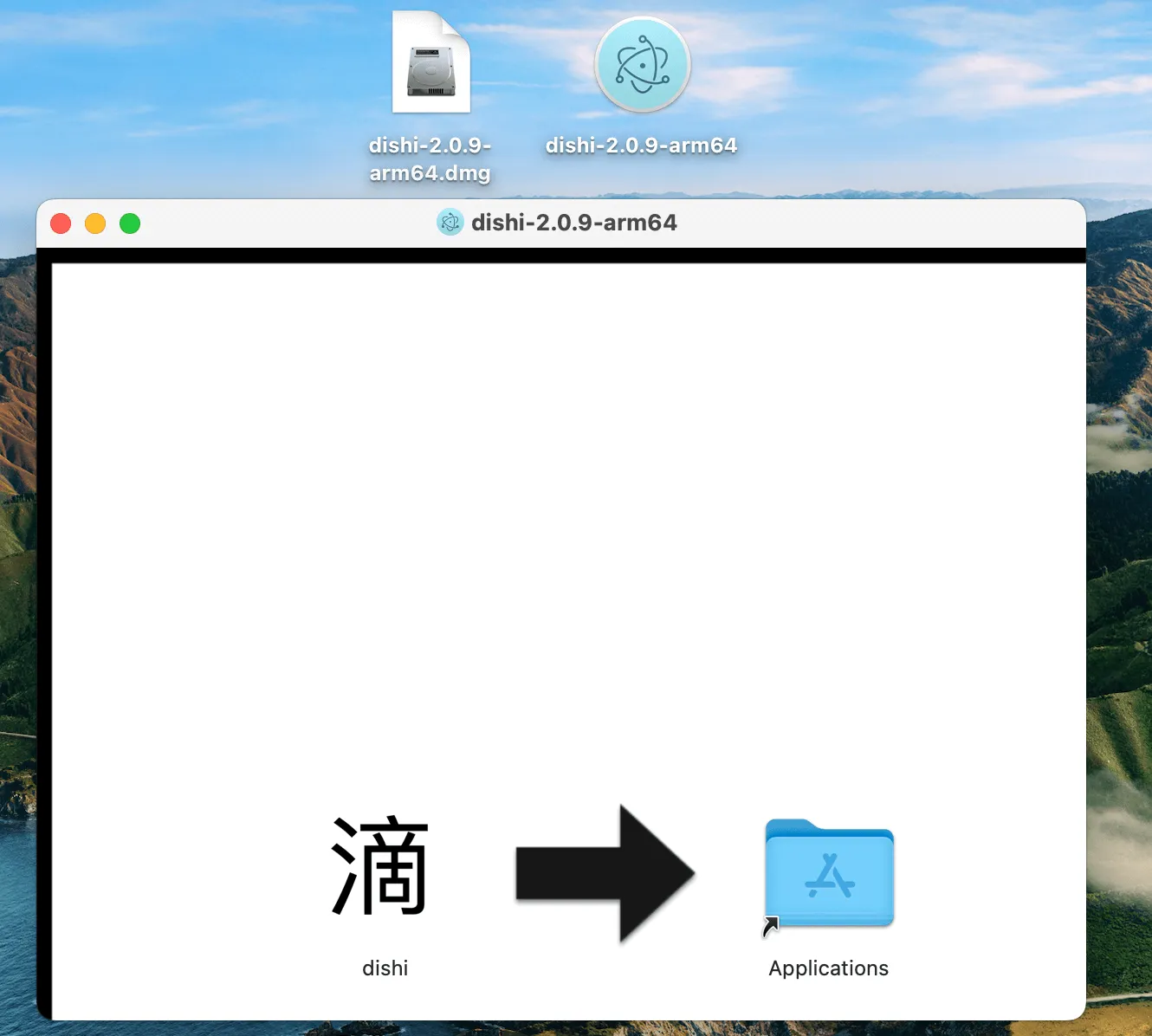
You can see:
-
After double-clicking the dmg file, the mounted icon is the default Electron icon.
-
The mounted view is a bit plain and ugly.
Customizing the Mounted DMG Icon
Using qiao-electron-cli,
https://qiao-electron-cli.vincentqiao.com/#/
Installation
npm i -D qiao-electron-cliConfiguration File
The key property is icon.
This icon is used when generating both the app bundle and the dmg.
// pkg
const pkg = require('../dist/package.json');

// const
const arch = process.arch;
const platform = process.platform;
const version = pkg.version;
const iconPath = `pack/icon/icon${platform === 'darwin' ? '.icns' : '.ico'}`;

// qiao-electron config
module.exports = {
  overwrite: true,
  asar: false,
  dir: 'dist',
  out: 'out',

  arch: arch,
  platform: platform,

  name: 'dishi',
  icon: iconPath,
  appVersion: version,
  appCopyright: 'Copyright © 2023 insistime.com All rights reserved',
};
Scripts
First run packmac to generate the Mac app,
then run packdmg to generate the dmg installer.
    "packmac": "qelectron pm ./pack/qiao-electron.config.js",
    "packdmg": "qelectron pd ./pack/qiao-electron.config.js",
Result
The customized result looks like this:
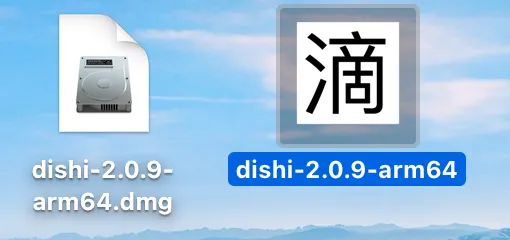
Customizing the Install View
The current install view looks like this:
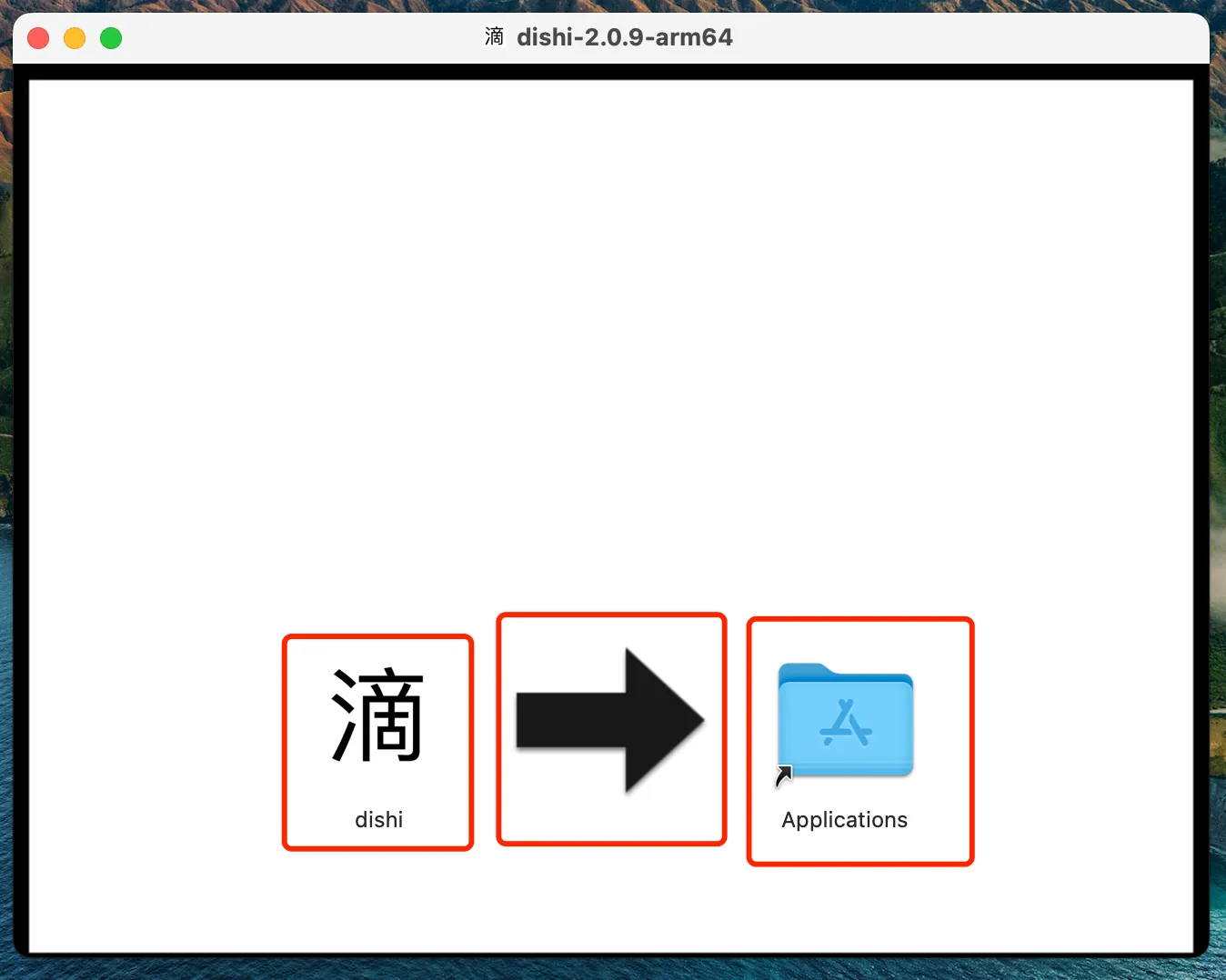
It consists of 3 parts:
-
Background image, which includes the black arrow
-
App icon, which is actually the app bundle and can be double-clicked to launch
-
Applications shortcut, which usually does not need to be changed
Change the Background Image
First, pick a background image.
Then modify the configuration file above,
adding a dmgBackground property.
{
  // dmg config - background image
  dmgBackground: 'pack/icon/bg.png',
}
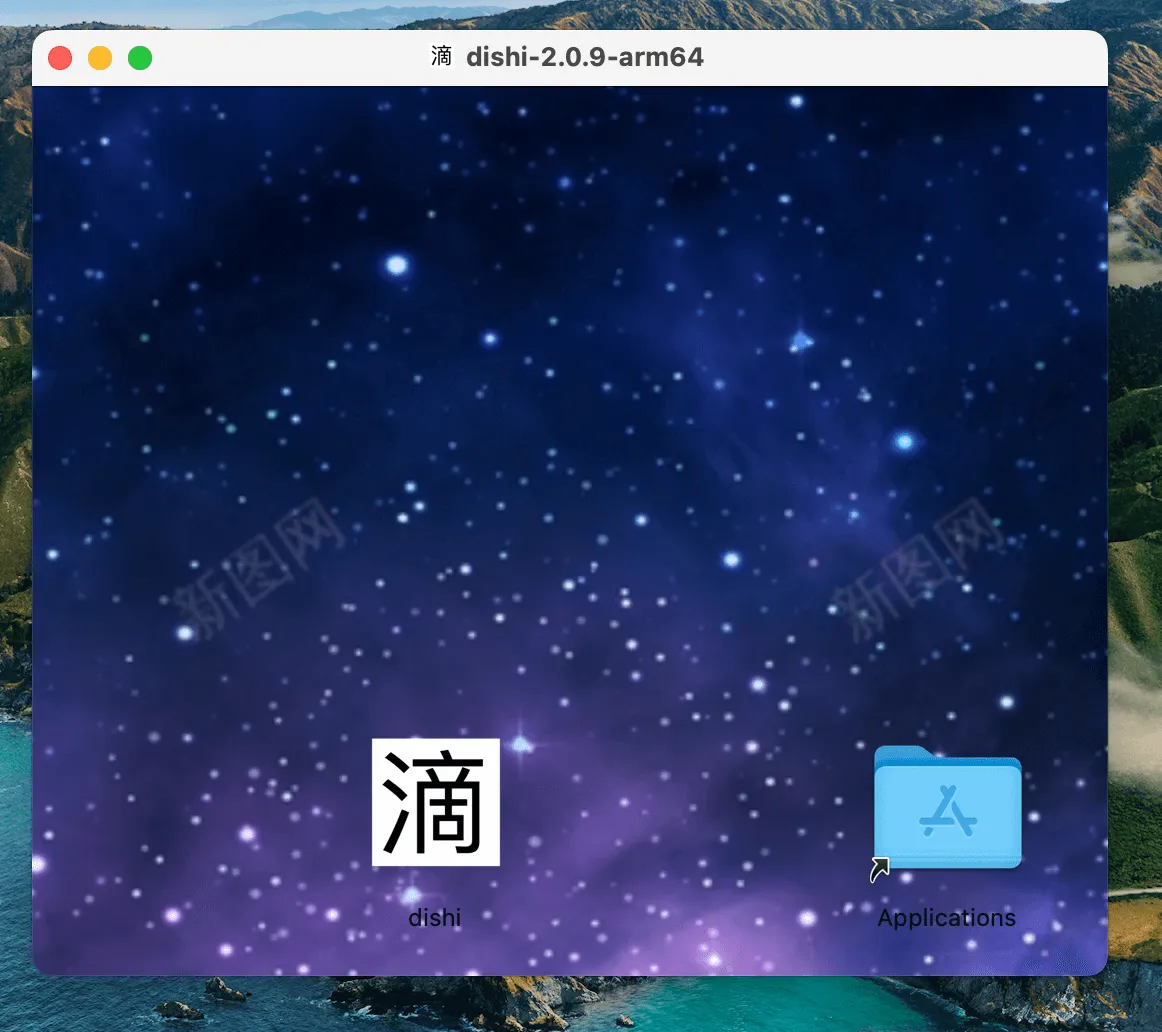
After regenerating the dmg, the result looks like this.
You can see the background image has been replaced.
Change Icon Positions
Suppose we want to move the two icons upward.
Add the following configuration:
type “file” represents the app icon position on the left,
type “link” represents the Applications shortcut position on the right.
{
  // dmg config - content positions
  dmgContents: [
    { x: 80, y: 60, type: 'file' },
    { x: 260, y: 60, type: 'link' },
  ],
}
After modifying the config and repackaging:
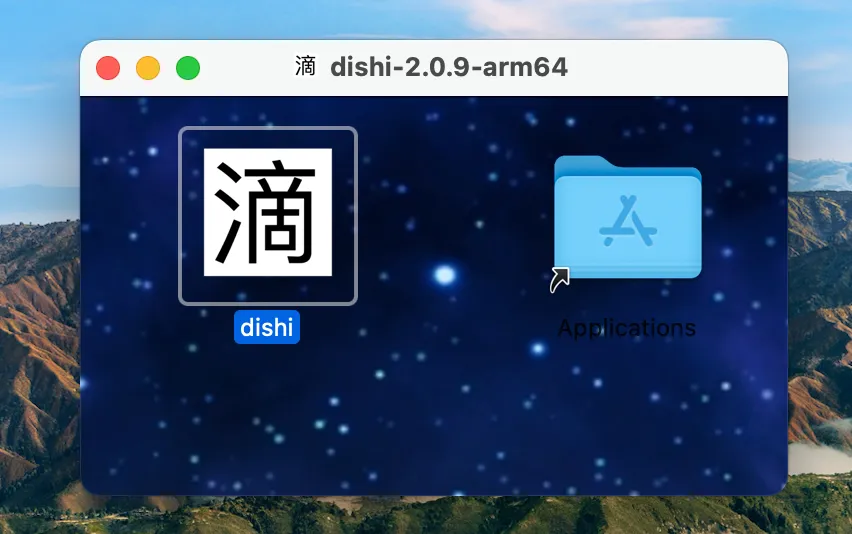
You can see the two icons have moved to the top of the view.
Change Window Size
After customizing the background image,
you may need to adjust the window size accordingly.
Add the following configuration:
{
  // dmg config - window size
  dmgWindowSize: {
    width: 350,
    height: 140,
  },
}
Final Result
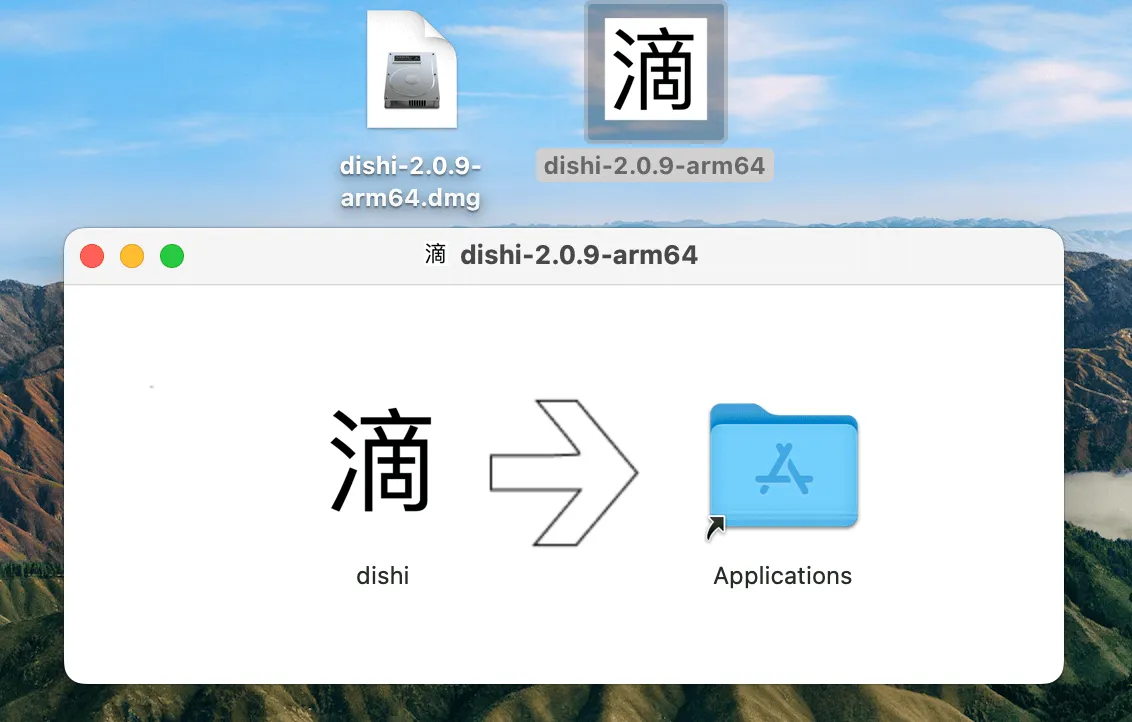
The final result:
-
Customized the mounted dmg icon
-
Customized the install view background image
-
Customized the install view window size
qiao-electron-cli
An npm package was created with the following features:
-
Package Mac app bundles
-
Package Mac dmg installers
https://qiao-electron-cli.vincentqiao.com/#/packdmg
To customize the dmg, just add a configuration file like this:
/**
 * dmg options
 */
module.exports = {
  // Customize window
  window: {
    size: {
      width: 500,
      height: 200,
    },
    position: {
      x: 500,
      y: 500,
    },
  },

  // Customize background image
  background: 'pack/icon/bg.png',

  // Content positions
  contents: [
    { x: 160, y: 90, type: 'file' },
    { x: 360, y: 90, type: 'link' },
  ],
};
Summary
-
Customize the mounted dmg icon
-
Customize the dmg install view - background image
-
Customize the dmg install view - icon positions
-
Customize the dmg install view - window size
-
qiao-electron-cli, https://qiao-electron-cli.vincentqiao.com/#/
-
Code repository for this article: https://github.com/uikoo9/dishi-monorepo/tree/custom-dmg
-
Application for this article (Mac M1): https://static-insistime.vincentqiao.com/21_dishi/dmg/dishi-2.1.1-arm64.dmg
-
Application for this article (Mac Intel): https://static-insistime.vincentqiao.com/21_dishi/dmg/dishi-2.1.1-x64.dmg