
Claude Code /effort: Make AI Think Harder (or Faster)

Table of Contents
- Why You Need /effort
- What Is /effort
- Four Levels
- low (Lightweight)
- medium (Balanced)
- high (Deep)
- max (Full Power)
- Special Mode: auto
- Checking Current Effort
- How Effort Affects API Calls
- Persistence and Scope
- Practical Usage Tips
- Daily Development: medium
- Simple Tasks: Temporarily Switch to low
- Complex Analysis: Upgrade to high or max
- Not Sure Which to Use?
- effort vs /fast
- Final Thoughts

Why You Need /effort
When developing with Claude Code, you’ve probably noticed something:
Sometimes you just want Claude to rename a variable, but it spends 10 seconds “deep thinking” and writes an entire analysis. Other times you want it to carefully debug a complex issue, but it fires back a shallow answer in a flash.
The problem? Claude’s “thinking intensity” doesn’t match your task complexity.
Simple tasks get over-analyzed, wasting time and tokens. Complex tasks don’t get enough reasoning depth, hurting quality.
That’s where /effort comes in — a switch that lets you control how deeply Claude thinks.
What Is /effort
/effort is Claude Code’s reasoning effort adjustment command. It controls how much “thinking resources” Claude invests when answering questions, directly affecting response speed, token consumption, and output quality.
In interactive mode, type:
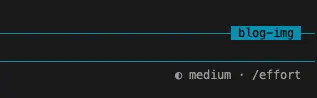
/effort mediumThe status bar will display the current effort level icon, confirming the setting is active.
Four Levels
/effort offers four levels, from lightweight to full power:
low (Lightweight)
/effort lowQuick, direct implementation with minimal overhead.
- Status icon: ○ (empty circle)
- Best for: Simple renames, formatting, one-line code changes, quick Q&A with known answers
- Characteristics: Fastest responses, lowest token consumption, but not suited for tasks requiring deep analysis
medium (Balanced)
/effort mediumBalanced implementation with standard testing and verification.
- Status icon: ◐ (half-filled circle)
- Best for: Most everyday development tasks — writing functions, fixing bugs, adding features
- Characteristics: The sweet spot between speed and quality, also the recommended default for Opus 4.6
- Bonus: Using medium maximizes your rate limit quota
high (Deep)
/effort highComprehensive implementation with thorough testing and documentation.
- Status icon: ● (filled circle)
- Best for: Complex refactoring, multi-file changes, bugs requiring careful analysis, architecture design
- Characteristics: Claude spends more time thinking, producing more detailed and complete output
max (Full Power)
/effort maxMaximum capability, deepest reasoning.
- Status icon: ◉ (circle within circle)
- Best for: The most complex tasks — large-scale refactoring, cross-system design, scenarios demanding peak reasoning
- Limitation: Only supported on Opus 4.6. Other models automatically downgrade to high
- Note: Significantly higher token consumption and noticeably longer response times
Special Mode: auto
/effort autoResets to the model’s default effort level. Defaults vary by model and subscription type:
- Opus 4.6 (Pro/Max/Team subscriptions): Defaults to medium
- Other cases: Defaults to high
auto essentially means “stop manual tuning, let the system decide.”
Checking Current Effort
Two ways to check:
/effortOr:
/effort statusThis displays the current effort level and its source (manual setting, environment variable, or model default).
You can also check the status bar anytime — the effort icon is always visible there.
How Effort Affects API Calls
This gets slightly technical, but understanding it helps you make better choices.
When you set an effort level, Claude Code includes an effort parameter in API requests:
- low/medium/high/max: Passed to the API via the
output_config.effortparameter - The API adjusts the model’s reasoning depth based on this parameter
In simple terms: higher effort means Claude invests more computational resources in its “thinking” phase, producing longer reasoning chains but consuming more tokens.
Persistence and Scope
Effort settings are persisted:
- low/medium/high: Saved to
settings.json, effective across Claude Code restarts - max: Current session only (unless you’re an Anthropic internal user)
Environment variable override: You can also set effort via environment variable:
export CLAUDE_CODE_EFFORT_LEVEL=mediumThe environment variable takes priority over settings.json. Set it to auto to reset to the model default.
Practical Usage Tips
Daily Development: medium
In most cases, medium is the best choice. Anthropic officially recommends medium for Opus 4.6 users — it strikes the best balance between speed, quality, and rate limits.
/effort mediumSimple Tasks: Temporarily Switch to low
When you need to make a batch of simple changes (bulk renames, adding comments, formatting), switching to low can speed things up significantly.
/effort low
Rename all camelCase variable names to snake_case in this file
/effort medium
Remember to switch back after simple tasks.
Complex Analysis: Upgrade to high or max
For complex bugs or scenarios requiring deep analysis, go with high. If you’re on Opus 4.6 and the task is exceptionally complex, use max.
/effort high
This concurrency bug only appears under high load, help me find the root cause
Not Sure Which to Use?
Start with medium. If the answer feels too shallow, upgrade to high. If it feels too slow, drop to low.
The core idea of effort: allocate on demand — don’t waste, don’t skimp.
effort vs /fast
You might wonder: what’s the difference between /effort low and /fast?
/fast: Switches to fast output mode (same model, faster output generation) — affects output generation speed/effort: Adjusts Claude’s reasoning depth — affects how thoroughly it thinks
They can be combined. For example, /fast + /effort low is the fastest possible combo, ideal for bulk simple tasks.
Final Thoughts
The essence of /effort is giving you control over AI’s thinking investment.
Previously, you could only passively accept Claude’s “thinking intensity” — sometimes too much, sometimes not enough. Now you can tune it based on actual task complexity: low for simple tasks, medium for daily work, high for complex tasks, max for extreme scenarios.
Use effort wisely — speed up simple tasks while ensuring quality on complex ones.
Next step: Now that you control how Claude thinks, why not give it a fresh look? 6 presets + colorblind-friendly mode to make your terminal feel like home.
Related Articles
Claude Code Agent Loop: Dissecting the Heart of an AI Coding Assistant
How does Claude Code understand your requests, invoke tools, and self-recover step by step? A source-code deep dive into the Agent Loop's core architecture — streaming responses, parallel tool execution, auto-compaction, and error recovery.
Claude Code settings.json Hooks: Auto-Run Scripts at Every Step
Want to auto-validate commands before they run? Send Slack notifications when tasks finish? Claude Code hooks let you inject custom scripts at key moments — PreToolUse, PostToolUse, Stop, Notification — with practical examples.
Where Is Claude Code settings.json? 5 Config Files, 1 Priority Rule
Claude Code has 5 config file locations: user-level (~/.claude/), project-level (.claude/), local-only, CLI flags, and enterprise managed settings. Learn which file to use when, how priority works, and why your settings might be ignored.
Claude Code settings.json: Copy-Paste Templates for env, model, auth & More
Ready-to-use Claude Code settings.json snippets for env vars, model switching, apiKeyHelper auth, git signing, effort level, language, auto-updates, and more. Every field includes a working JSON example you can copy and paste.
Claude Code settings.json Permissions: Control Exactly What AI Can Do
Stop clicking 'Allow' on every action. Configure Claude Code's permissions system — set allow/deny/ask rules, use wildcards, control MCP tools, and protect sensitive directories. Every permission option with practical examples.