
StableDiffusionWebUI: Prompt Plugins
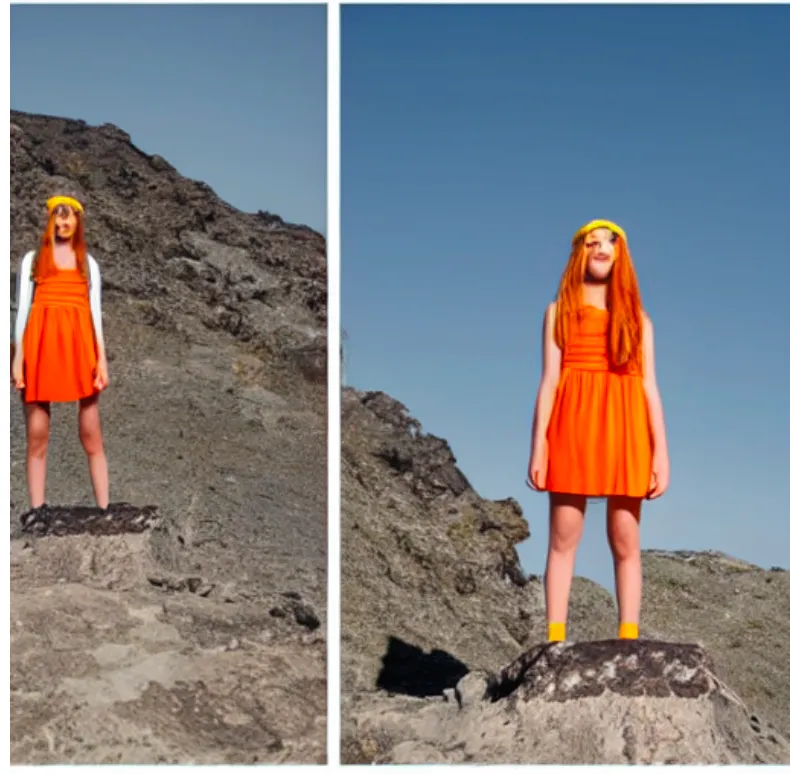
Table of Contents

Preface
After installing sdwebui locally and getting familiar with the interface,
you might feel lost about how to actually generate images.
You can start by setting a few small goals:
-
Find an IP, anime character, or celebrity you like, and try generating images of them
-
Take an ordinary photo of yourself and try swapping it into a cool scene
Prompts
For example, if I want to generate an image of Naruto after becoming Hokage,
I need to find the right prompts. If I had to come up with them myself, I might think of:
A teenager with yellow hair, wearing a headband, dressed in an orange and black striped outfit, struck some cool poses, standing on a mountaintop, looking at the camera.
Then use a translation tool to translate it to:
The teenager with yellow hair, wearing a headband, dressed in an orange and black striped outfit, struck some cool poses, standing on a mountaintop, looking at the camera.
Using the sd-v1.5 checkpoint, the result looks like:
The result above is clearly terrible. There are many reasons for this,
but let’s first address it from the prompt perspective.
As we all know, prompts are divided into positive prompts and negative prompts.
Positive prompts describe what you want to see,
negative prompts describe what you don’t want to see.
In the example above, only positive prompts were entered.
Let’s add some negative prompts.
Here are some common negative prompts found online:
Easy Negative, worst quality, low quality, normal quality, lowers, monochrome, grayscales, skin spots, acnes, skin blemishes, age spot, 6 more fingers on one hand, deformity, bad legs, error legs, bad feet, malformed limbs, extra limbs, ugly, poorly drawn hands, poorly drawn feet, poorly drawn face, text, mutilated, extra fingers, mutated hands, mutation, bad anatomy, cloned face, disfigured, fused fingers
After adding them, here’s the result:
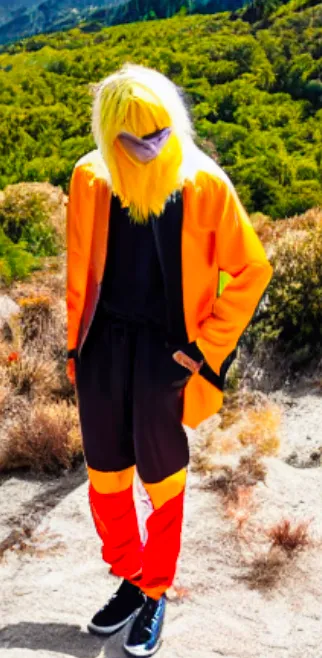
The result is slightly better.
Prompt Plugins
From the example above, it’s clear that how you write prompts is strongly correlated with the results.
So where can you find suitable positive and negative prompts?
There are many prompt plugins available for sdwebui.
Where can you find good prompt plugins?
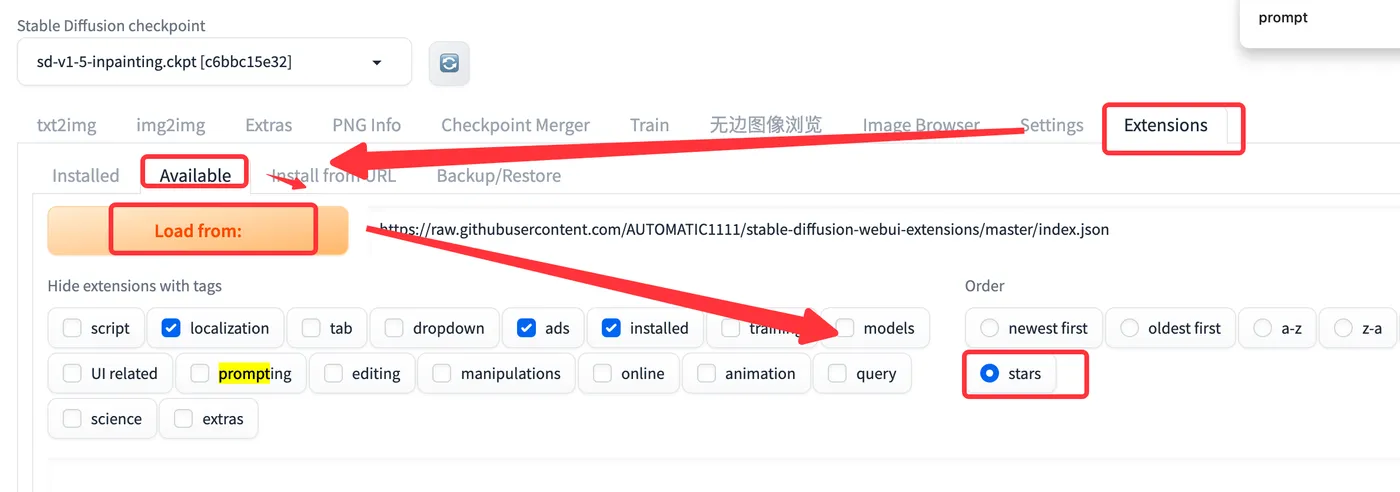
In sdwebui, go to Extensions - Available - Load from, sort by stars, then search for the keyword “prompt”.
This gives you prompt plugins sorted by star count.
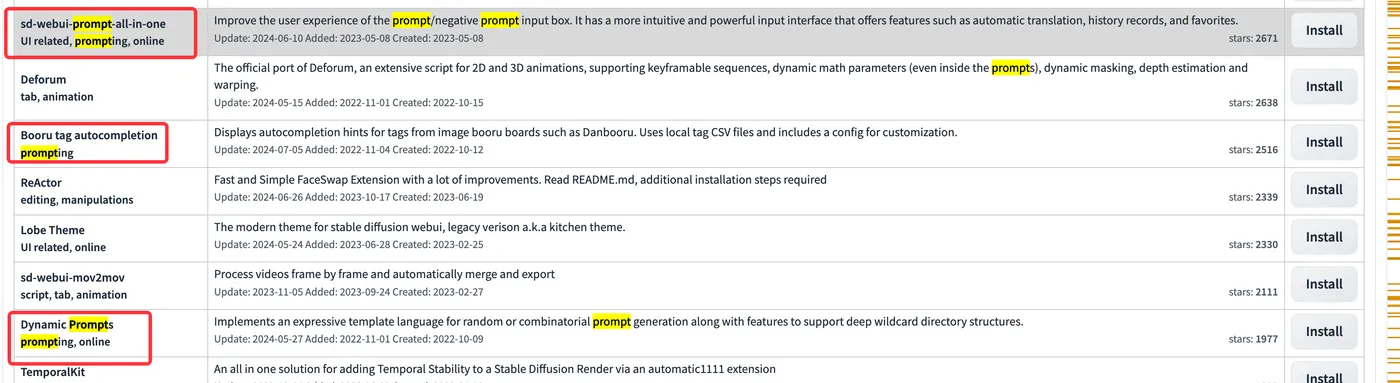
The top 3 prompt plugins are listed below. Let’s install them one by one and check the results.
There are two ways to install:
-
Click the “install” button for the corresponding plugin, then wait for installation to complete
-
Directly git clone the project into the sdwebui/extensions directory
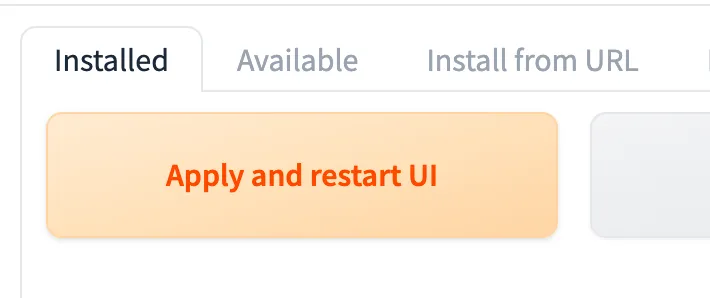
After installation, restart the UI by going to Extensions - Installed - Apply and restart UI, then wait for the restart to complete.
prompt-all-in-one
URL: https://github.com/Physton/sd-webui-prompt-all-in-one
Result:
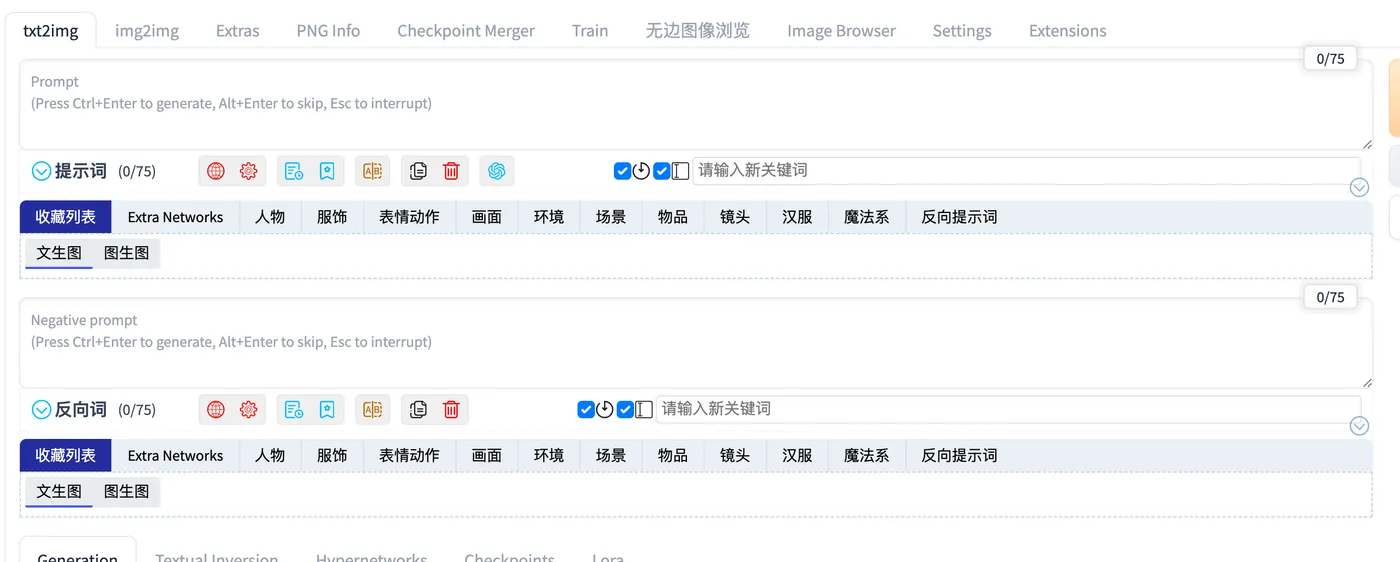
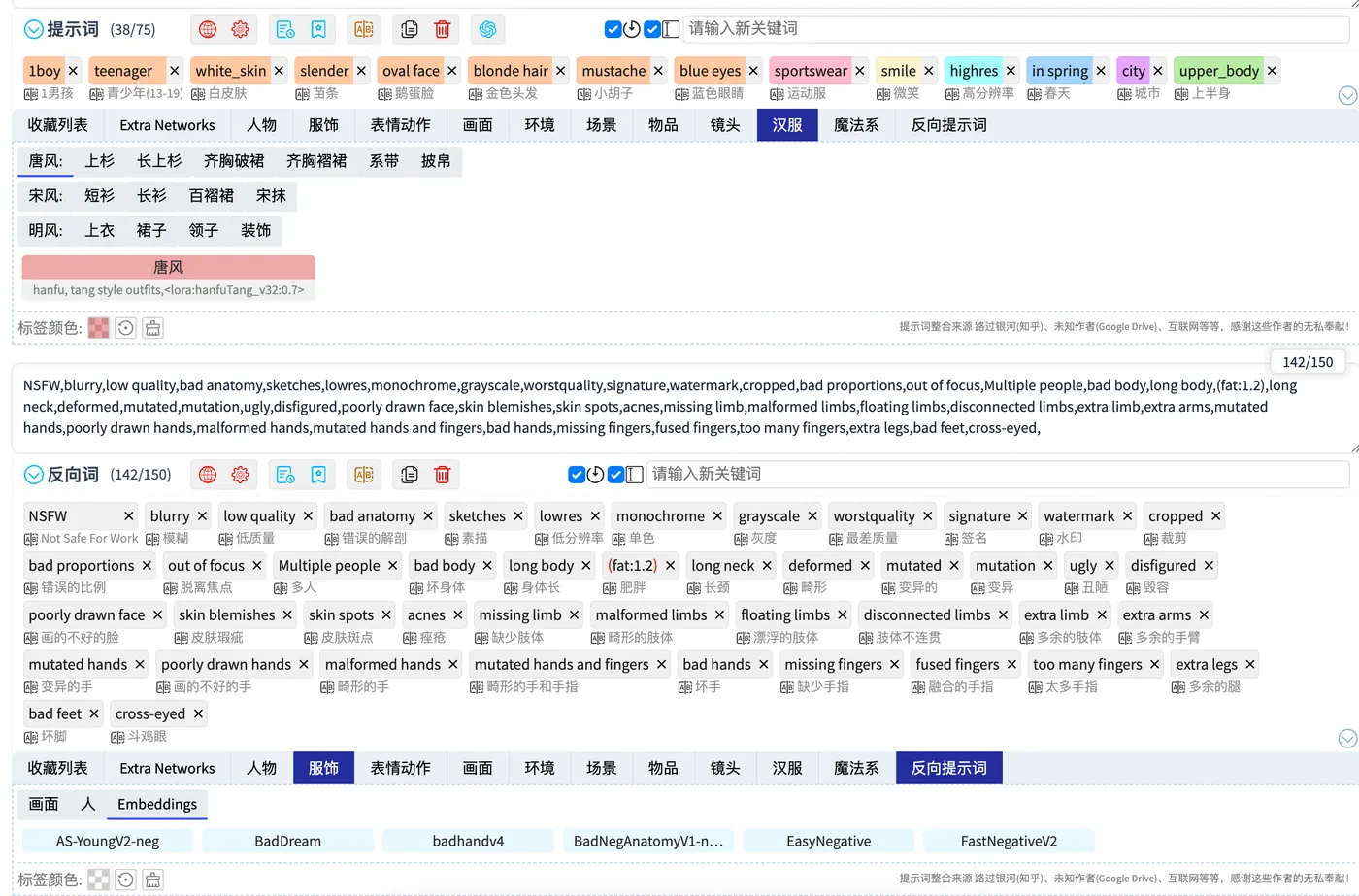
prompt-all-in-one is currently the most popular prompt plugin. Its features include:
-
Common prompts are categorized and ready to use
-
Prompt translation
-
GPT-powered prompt suggestions
-
Favorites and more
Using this plugin, I can easily describe positive prompts from various dimensions and provide negative prompts.
tagcomplete
URL: https://github.com/DominikDoom/a1111-sd-webui-tagcomplete
Result:
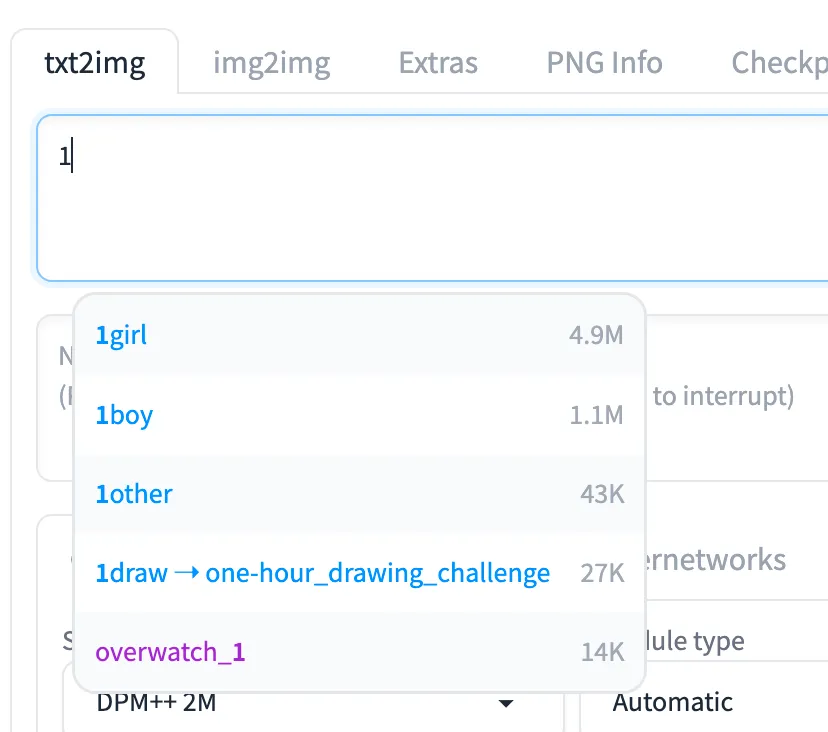
This plugin is relatively simple — it provides auto-complete suggestions for prompts.
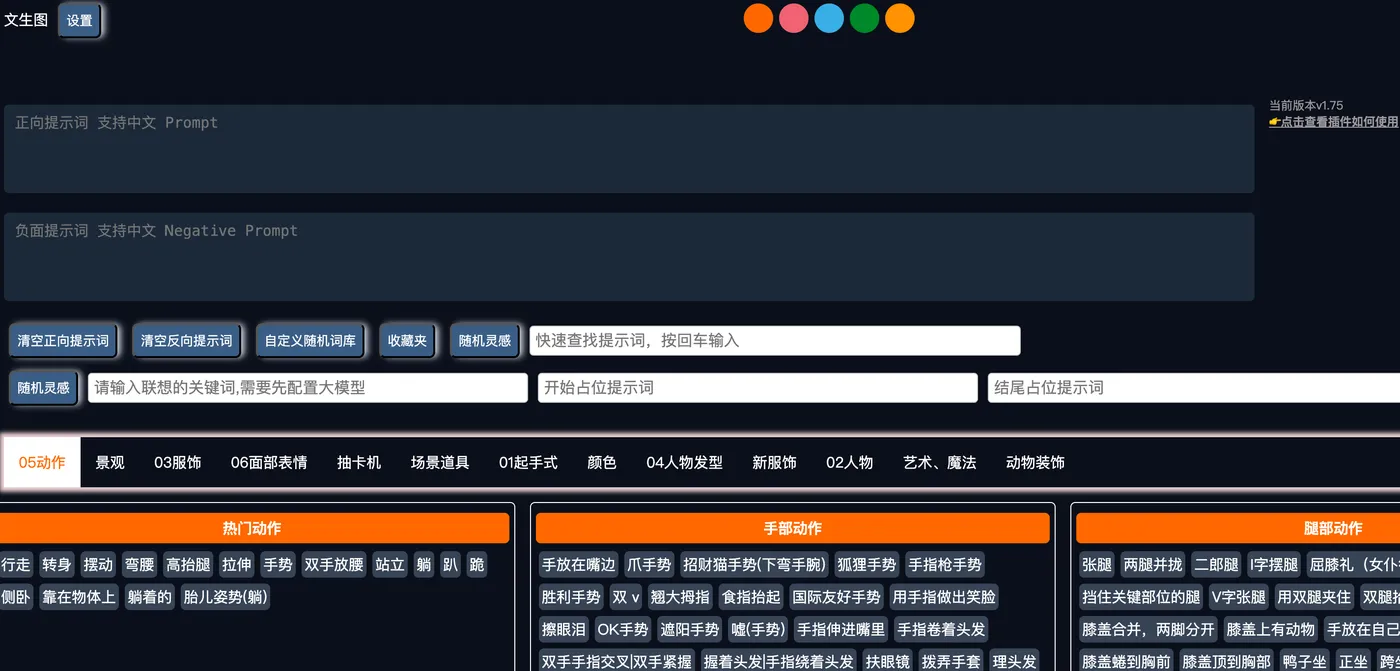
oldsix-prompts
URL: https://github.com/thisjam/sd-webui-oldsix-prompt
Result:
There’s a small button at the bottom of the page. Clicking it opens a popup for selecting prompts.
Summary
Prompt plugins are great for beginners,
as they simplify the image generation process.
For a feature-rich and comprehensive option, choose prompt-all-in-one: https://github.com/Physton/sd-webui-prompt-all-in-one
For a simpler option, use tagcomplete: https://github.com/DominikDoom/a1111-sd-webui-tagcomplete
For a balanced option with automatic Chinese translation, choose oldsix: https://github.com/thisjam/sd-webui-oldsix-prompt
SDWebUI
|—URL: https://sdwebui.ai/?from=vq
|—Authentic Stable Diffusion WebUI V1.10.1~
|—Top-tier 4090 GPU, premium members get exclusive single 4090 for image generation~
|—Supports Mac client, Windows client, and Web online usage~
|—Innovative instant model transfer, upload local models instantly~
|—Supports txt2img, img2img, extras, and image info
|—Supports CLIP interrogation and DeepBooru interrogation
|—Supports HD upscaling (Hires.fix), with 21 built-in upscaling models
|—Supports detail restoration (ADetailer), with 11 built-in restoration models
|—Supports ControlNet, with 44 built-in preprocessors and 68 built-in models
|—Supports ultra-HD upscaling (Tiled Diffusion, Demo Fusion, Tiled VAE)
|—Supports old photo restoration, with 21 built-in upscaling models, plus GFPGAN and CodeFormer restoration models
|—Built-in 2 common Styles, 11 popular Checkpoint models, 7 popular LoRA models, 14 common embeddings
|—Built-in oldsix prompt plugin
|—Built-in 23-lesson beginner tutorial
Related Articles
sdwebui.ai - Ready-to-Use Native sdwebui
sdwebui.ai sdwebui.ai is a ready-to-use native online sdwebui. URL: https://www.sdwebui.ai/ Authentic Stable Diffusion WebUI V1.10.1 Top-tier 4090 GPU, premium members get exclusive single 4090 for image generation Supports Mac client, Windows client, and Web online usage
StableDiffusionWebUI: Detail Repair (ADetailer)
Using ADetailer to fix facial and hand details in Stable Diffusion — installation, usage, parallel repair, and model comparison.
SodaArt - Restore Old Photos in Three Steps
Environment Setup Open https://sodaart.ai/, download the Mac or Windows client, install and open it locally, or click Online Generation to open the web version directly. Step 1: Log in to the homepage Use your phone number + verification code to log in, then click Online Generation. Step 2: Upload old photos in the Extras tab Under Online Generation - Extras tab, upload your old photos. Step 3: Configure
StableDiffusionWebUI: Old Photo Restoration (GFPGAN)
Preface: One of the use cases for sdwebui is old photo restoration. Common old photo restoration tools existed before sdwebui, including GFPGAN and CodeFormer. However, combining them with Hires.fix in sdwebui yields even better results.
StableDiffusionWebUI: Image Info (PNG Info)
Preface: PNG Info is a built-in feature of sdwebui that is essential in everyday image generation workflows. It allows you to upload an image, read its meta information, parse the generation parameters, and conveniently send them to other features like txt2img, img2img, and inpainting.