
Running Multiple WeChat Clients on Mac

Preface
Many people have multiple WeChat accounts in daily life.
On mobile, you can use two phones or Android’s multi-app feature to run multiple WeChat instances.
How do you run multiple WeChat clients on a Mac?
A common approach is to use one desktop client
and one web client: https://wx.qq.com/
But the web client experience is obviously not as good as the desktop client.
This article explains how to run multiple WeChat desktop clients on Mac.
Creating Shortcuts
- Right-click the WeChat icon in Applications and select “Show Package Contents”

- Navigate to Contents - MacOS - WeChat icon
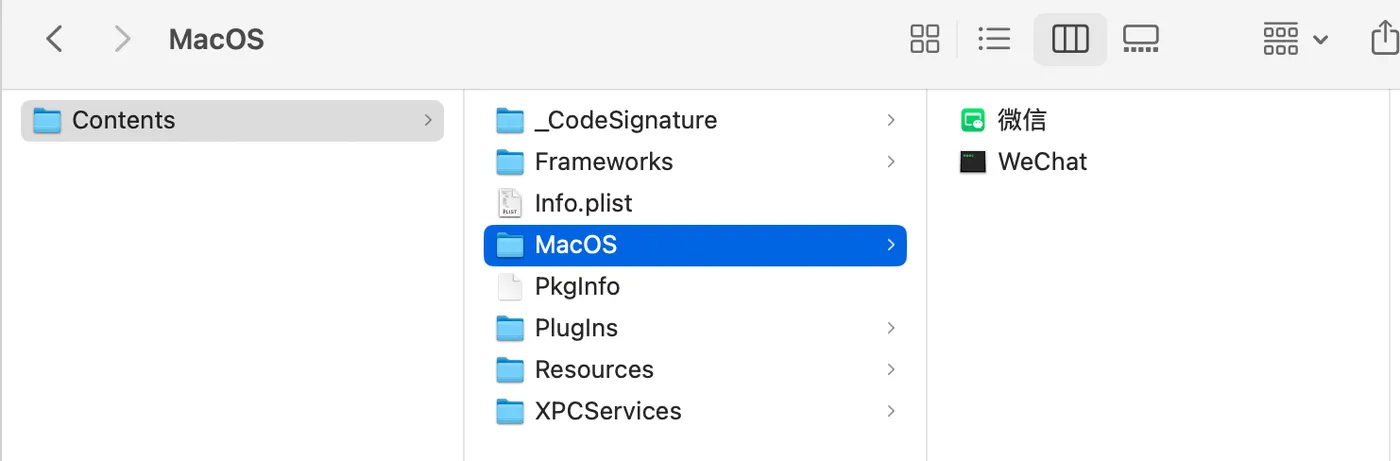
- Right-click the WeChat icon and select “Make Alias”

- Rename the aliases and drag them to the desktop. Here we create two aliases: wechat1 and wechat2
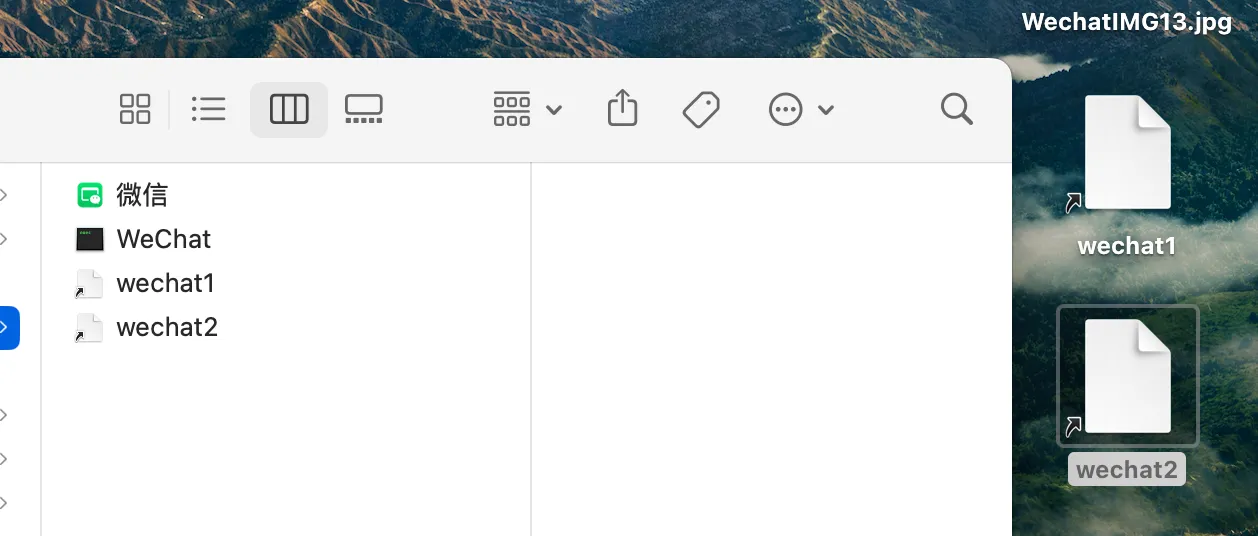
An alias is essentially a shortcut.
Running Multiple WeChat Clients
Click the aliases wechat1 and wechat2 created above.
Two WeChat instances will open — scan the QR codes with your two WeChat accounts on your phone to log in.

Similarly, if you want to open more WeChat instances, just create more aliases.
How It Works
The principle is straightforward:
-
Double-clicking the WeChat icon launches it as an application, which checks whether an instance is already running.
-
Double-clicking WeChat - Contents - MacOS - WeChat launches it as a process, which cannot check whether an instance is already running.