
Electron in Practice: Creating a Window

Preface
Getting started with Electron requires creating a window.
A window is used to display the UI.
A window runs in the renderer process.
Creating a Window
Create a new frontend project.
The package.json looks like this:
{
  "name": "window-test",
  "version": "1.0.0",
  "main": "index.js",
  "scripts": {
    "start": "electron main.js"
  },
  "devDependencies": {
    "electron": "^25.2.0"
  }
}
You can see that Electron is installed as a dev dependency,
i.e. the following command was run:
npm i -D electronThere’s also a start script for launching the Electron app locally.
The corresponding main.js creates a BrowserWindow and loads an online URL:
// In the main process.
const { BrowserWindow } = require('electron');

const win = new BrowserWindow({ width: 800, height: 600 });

// Load a remote URL
win.loadURL('https://github.com');
Running npm start shows:
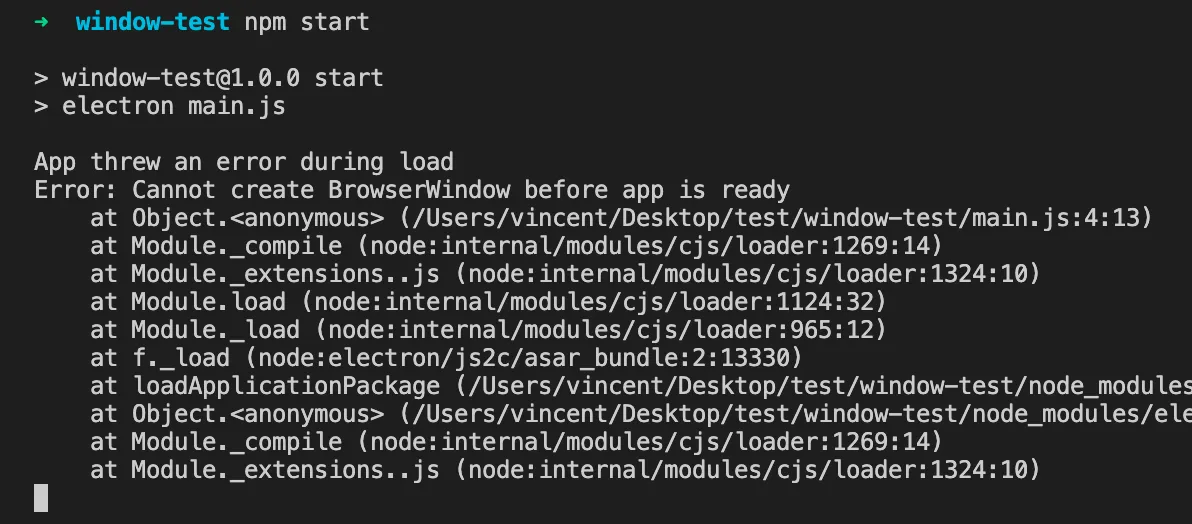
The error says you cannot create a window before app ready.
Update the code as follows:
// electron
const { app, BrowserWindow } = require('electron');

// app ready
app.on('ready', () => {
  const win = new BrowserWindow({ width: 800, height: 600 });

  // Load a remote URL
  win.loadURL('https://github.com');
});
Run npm start again, and the app launches:

loadURL
As shown above, the loadURL method is used.
This method loads an already accessible web page.
It’s the fastest way to turn an existing website into an Electron app,
but there may be some compatibility issues,
and the user has to wait for the page to load after the window appears,
resulting in a poor experience.
ready-to-show
To solve the issue of showing the window before the page loads,
modify the code as follows:
-
Add a show property when creating the window
-
Only show the window after the ready-to-show event
// electron
const { app, BrowserWindow } = require('electron');

// app ready
app.on('ready', () => {
  // create window
  const win = new BrowserWindow({
    width: 800,
    height: 600,
    show: false,
  });

  // ready to show
  win.once('ready-to-show', () => {
    win.show();
  });

  // load url
  win.loadURL('https://github.com');
});
Background Color
The ready-to-show event above
may respond slowly on lower-performance machines.
The user’s experience might be: they click the app
but nothing happens.
Electron is actually starting,
but the ready-to-show event is slow.
In this case, an alternative approach is recommended —
set a background color for the window.
The effect:
-
On high-performance machines: the window and content appear quickly
-
On lower-performance machines: the window and background color appear first, then the content loads
Updated code:
// electron
const { app, BrowserWindow } = require('electron');

// app ready
app.on('ready', () => {
  // create window
  const win = new BrowserWindow({
    width: 800,
    height: 600,
    backgroundColor: '#2e2c29',
  });

  // load url
  win.loadURL('https://github.com');
});
Common Properties
Here are some common window properties,
including width/height, position, min/max dimensions, resizability, and more:
// electron
const { app, BrowserWindow } = require('electron');

// app ready
app.on('ready', () => {
  // create window
  const win = new BrowserWindow({
    width: 400,
    height: 400,
    x: 0,
    y: 0,
    minWidth: 200,
    minHeight: 200,
    maxWidth: 800,
    maxHeight: 800,
    resizable: true,
    movable: true,
    minimizable: true,
    maximizable: true,
    closable: true,
    focusable: true,
    backgroundColor: '#2e2c29',
  });

  // load url
  win.loadURL('https://github.com');
});
Title Bar
The titleBarStyle property sets the title bar style.
‘default’ is the default style. On Mac it looks like:

‘hidden’ hides the title bar, keeping only the top-left buttons on Mac:

‘hiddenInset’ also hides the title bar, keeping the top-left buttons on Mac:

loadFile
Above we introduced loading a page with loadURL.
Whether using ready-to-show or background color,
there are still some UX issues:
-
Using ready-to-show: slow startup on lower-performance machines
-
Using background color: the user sees the window but has to wait for content to load
In practice, Electron apps rarely use loadURL.
loadURL just loads a web page.
Electron apps typically load local files instead,
which essentially eliminates the page loading wait.
To load a local file, use loadFile:
// electron
const { app, BrowserWindow } = require('electron');

// app ready
app.on('ready', () => {
  // create window
  const win = new BrowserWindow({
    width: 400,
    height: 400,
  });

  // load file
  win.loadFile('./renderer/index.html');
});
qiao-x-window
Common Electron window methods have been wrapped into a library:
https://code.insistime.com/#/qiao-x-window
For example, opening a window from a local file
can be simplified to:
// electron
const { app } = require('electron');

// q
const { openWindowByFile } = require('qiao-x-window');

// app ready
app.on('ready', async () => {
  const win = await openWindowByFile('./renderer/index.html');
  console.log(win);
});
Summary
-
Creating a window with loadURL
-
Creating a window with loadFile
-
Creating a window with ready-to-show
-
Creating a window with background color
-
Creating a window with title bar customization
-
Electron window utility: https://code.insistime.com/#/qiao-x-window