
Claude Code /permissions: Fine-Grained Control Over What AI Can Do

Table of Contents
- What is /permissions
- Permission System Basics
- Three Behaviors
- Rule Format
- Rule Sources
- How to Use /permissions
- Configuring Permissions in settings.json
- Basic Structure
- Allow Rule Examples
- Deny Rule Examples
- Ask Rule Examples
- Wildcard Matching Explained
- Exact Match
- Prefix Match (:* syntax)
- Wildcard Match (* syntax)
- MCP Tool Matching
- Permission Modes
- Permission Check Flow
- Practical Tips
- Tip 1: Start Loose, Tighten Gradually
- Tip 2: Use Layered Management
- Tip 3: Use Deny Rules as a Safety Net
- Tip 4: Use /permissions to Debug Permission Issues
- Security Recommendations
- Final Thoughts

What is /permissions
If you’ve used Claude Code, you’ve definitely experienced this:
- Claude Code wants to run
npm install— a popup asks “Allow?” - You click Allow, then it wants to run
npm test— another popup - By the end of a task, you’ve clicked “Allow” a dozen times
The other extreme: you get tired of popups and enable bypass permissions mode — but feel uneasy, wondering what if it runs something dangerous?
/permissions solves exactly this problem. It gives you fine-grained control over every tool in Claude Code: which actions auto-approve, which must ask you first, and which are outright blocked.
Not too loose, not too tight — just right.
Permission System Basics
Before diving into /permissions, let’s understand Claude Code’s permission model.
Three Behaviors
Every permission rule maps to one of three behaviors:
| Behavior | Meaning |
|---|---|
| allow | Auto-approve, no popup |
| deny | Reject outright, Claude Code won’t execute |
| ask | Force a popup, even in permissive modes |
Rule Format
Permission rules use the format ToolName or ToolName(content):
Bash                    → allow/deny/ask all Bash commands
Bash(npm install)       → only the exact "npm install" command
Bash(npm:*)             → all commands starting with "npm" (prefix match)
Bash(npm *)             → same, using wildcard syntax
Edit                    → all file edit operations
mcp__server1            → all tools from an MCP server
mcp__server1__tool1     → a specific MCP server tool
Rule Sources
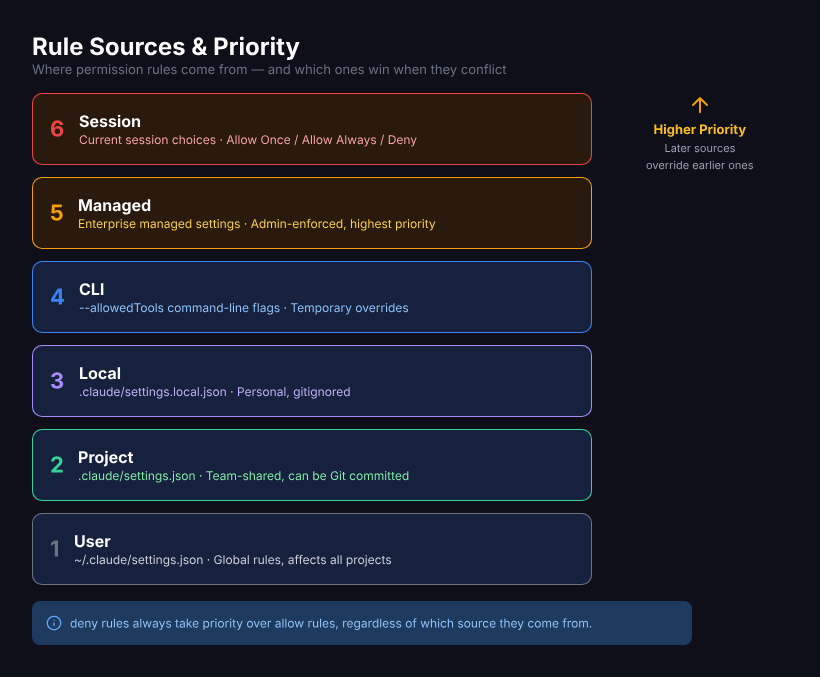
Permission rules can come from multiple places, with later sources overriding earlier ones:
| Source | File Path | Description |
|---|---|---|
| User | ~/.claude/settings.json | Global rules, affect all projects |
| Project | <project>/.claude/settings.json | Project-level, can be committed to Git |
| Local | <project>/.claude/settings.local.json | Project-level local, gitignored |
| CLI | --allowedTools and similar flags | Temporarily specified |
| Managed | Enterprise managed settings | Pushed by admins, highest priority |
| Session | Your choices in the current session | Only valid for this session |
How to Use /permissions
In Claude Code’s interactive mode, type:
/permissionsAn interactive panel appears listing all active permission rules. Its alias is /allowed-tools.
In this panel you can:
- View all allow, deny, and ask rules, along with which config source they come from
- Delete rules you no longer need
- Retry denied operations — if an action was previously denied, you can remove the restriction and retry here
Configuring Permissions in settings.json
The /permissions panel is great for viewing and deleting rules. But for bulk-adding rules, editing settings.json directly is more efficient.
Basic Structure
{
  "permissions": {
    "allow": ["Bash(npm:*)", "Bash(git:*)", "Edit", "Read", "Glob", "Grep"],
    "deny": ["Bash(rm -rf:*)", "Bash(sudo:*)"],
    "ask": ["Bash(git push:*)"]
  }
}
Allow Rule Examples
{
  "permissions": {
    "allow": [
      "Bash(npm:*)",
      "Bash(npx:*)",
      "Bash(node:*)",
      "Bash(git:*)",
      "Bash(ls:*)",
      "Bash(cat:*)",
      "Bash(echo:*)",
      "Bash(mkdir:*)",
      "Bash(cp:*)",
      "Bash(mv:*)",
      "Edit",
      "Write",
      "Read",
      "Glob",
      "Grep",
      "WebFetch",
      "WebSearch",
      "Agent",
      "TodoWrite",
      "mcp__github"
    ]
  }
}
The effect of these rules:
- Common dev commands (npm, git, node, file operations) auto-approve
- File read/write and search tools auto-approve
- All tools from the GitHub MCP server auto-approve
- Any unlisted operations still prompt for confirmation
Deny Rule Examples
{
  "permissions": {
    "deny": ["Bash(rm -rf:*)", "Bash(sudo:*)", "Bash(curl * | sh:*)", "Bash(wget * | sh:*)"]
  }
}
These rules outright block dangerous operations: recursive deletion, sudo escalation, and downloading-and-executing scripts from the internet.
Ask Rule Examples
{
  "permissions": {
    "ask": ["Bash(git push:*)", "Bash(git checkout:*)", "Bash(docker:*)"]
  }
}
These commands always prompt for confirmation even in permissive modes — pushing code, switching branches, and Docker operations are things you probably want to review.
Wildcard Matching Explained
Permission rules support three matching modes:
Exact Match
Bash(npm install)Only matches the exact npm install command. npm install express won’t match.
Prefix Match (:* syntax)
Bash(npm:*)Matches all commands starting with npm: npm install, npm test, npm run build all match.
This is the most common format. The :* after the prefix means “anything can follow.”
Wildcard Match (* syntax)
Bash(git * --force)* can be placed anywhere, matching any content. The rule above matches git push --force, git push origin main --force, etc.
If your rule ends with space + * (like git *), then bare git itself also matches — consistent with prefix match behavior.
MCP Tool Matching
mcp__github              → all tools from the GitHub MCP server
mcp__github__*           → same, wildcard syntax
mcp__github__create_pr   → only the create_pr tool
Permission Modes
Beyond rules, Claude Code has global “permission modes” that determine default behavior when no rule matches:
| Mode | Behavior |
|---|---|
| default | Standard mode. Read operations auto-approve, writes and command execution prompt |
| plan | Planning mode. Claude Code drafts a plan first, prompts before execution |
| acceptEdits | Accept edits mode. File edits auto-approve, Bash commands still prompt |
| bypassPermissions | Skip permissions. All operations auto-approve (dangerous, use with caution) |
Permission modes can be switched in /config or set as defaults in settings.json:
{
  "permissions": {
    "defaultMode": "default"
  }
}
Permission Check Flow
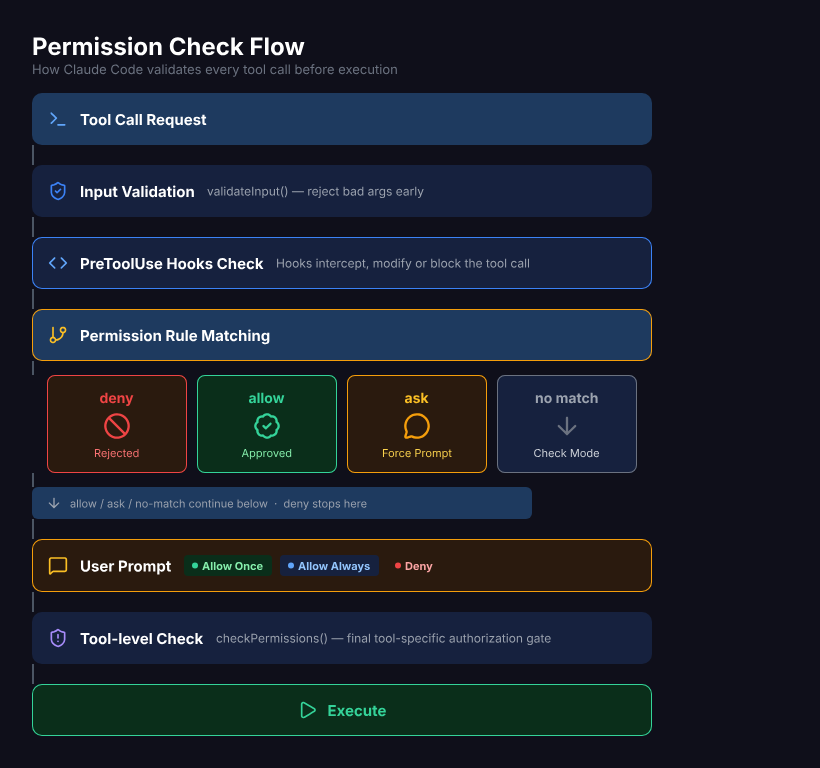
When Claude Code wants to execute a tool, the complete permission check flow is:
Key points:
- Deny rules take priority over allow rules — if an action matches both allow and deny, deny wins
- Hooks are checked before rules — hooks can intercept or even modify tool calls
- Choosing “Allow Always” in the prompt automatically writes a rule — the same action won’t ask again
Practical Tips
Tip 1: Start Loose, Tighten Gradually
When you first start using Claude Code, don’t rush to configure permissions. Use default mode and observe which operations Claude Code needs day-to-day. Once you’ve built up experience, gradually add allow and deny rules based on your needs.
Selecting “Allow Always” in popups is the simplest way to add rules — over time, your permission configuration naturally fills out.
Tip 2: Use Layered Management
- Global rules (
~/.claude/settings.json) — Universal rules needed across all projects, likeEdit,Read,Glob,Grep - Project shared rules (
.claude/settings.json) — Team-unified project-level rules, like allowing project-specific build commands - Personal local rules (
.claude/settings.local.json) — Your personal preferences, like allowing tools only you use
Tip 3: Use Deny Rules as a Safety Net
Even if your allow rules are generous, add a few deny rules as a backstop:
{
  "permissions": {
    "deny": ["Bash(rm -rf /)", "Bash(sudo:*)", "Bash(:(){ :|:& };:)"]
  }
}
Deny rules take priority over everything — they’re your last line of defense.
Tip 4: Use /permissions to Debug Permission Issues
If Claude Code keeps failing on a certain operation, or does something it shouldn’t, open /permissions to check the active rule list. Each rule shows its source (user / project / local / session), making it easy to identify which config file is causing the issue.
Security Recommendations
- Don’t put overly permissive allow rules in shared project settings.json — team members have different environments; commands you trust might be risky for others
- Periodically check your rule list with
/permissions— over time, you may accumulate allow rules you no longer need - Use managed settings in enterprise environments — admins can force-deny certain operations through managed settings for compliance
- Only use bypassPermissions mode when you fully trust the current task — it skips all prompts, including for dangerous operations
Final Thoughts
Permission management seems like a hassle, but it’s really the trust foundation for collaborating with AI.
If every action triggers a popup, you get interrupted and lose efficiency. If nothing triggers a popup, you worry and feel uneasy. Good permission configuration is the key to being both smooth and secure — auto-approve what’s safe, intercept what’s risky.
Spend ten minutes adding common operations to the allow list and dangerous operations to the deny list, then you can focus on what truly matters — letting Claude Code write code for you, instead of constantly clicking “Allow.”
Related Articles
Claude Code Agent Loop: Dissecting the Heart of an AI Coding Assistant
How does Claude Code understand your requests, invoke tools, and self-recover step by step? A source-code deep dive into the Agent Loop's core architecture — streaming responses, parallel tool execution, auto-compaction, and error recovery.
Claude Code settings.json Hooks: Auto-Run Scripts at Every Step
Want to auto-validate commands before they run? Send Slack notifications when tasks finish? Claude Code hooks let you inject custom scripts at key moments — PreToolUse, PostToolUse, Stop, Notification — with practical examples.
Where Is Claude Code settings.json? 5 Config Files, 1 Priority Rule
Claude Code has 5 config file locations: user-level (~/.claude/), project-level (.claude/), local-only, CLI flags, and enterprise managed settings. Learn which file to use when, how priority works, and why your settings might be ignored.
Claude Code settings.json: Copy-Paste Templates for env, model, auth & More
Ready-to-use Claude Code settings.json snippets for env vars, model switching, apiKeyHelper auth, git signing, effort level, language, auto-updates, and more. Every field includes a working JSON example you can copy and paste.
Claude Code settings.json Permissions: Control Exactly What AI Can Do
Stop clicking 'Allow' on every action. Configure Claude Code's permissions system — set allow/deny/ask rules, use wildcards, control MCP tools, and protect sensitive directories. Every permission option with practical examples.