AWS - Image Conversion with Lambda@Edge and CloudFront
Preface
Chinese cloud providers (e.g. Alibaba Cloud OSS, Tencent Cloud COS) make it very easy to convert image formats and sizes —
typically by appending conversion parameters to the URL.
Surprisingly, AWS does not offer this service. You need to write your own Lambda@Edge functions to achieve it.
This article provides a complete walkthrough of implementing image conversion using Lambda@Edge.
References
Initially, I looked for an open-source solution on GitHub.
I found a decent one: https://github.com/EsunR/s3-image-handler
But I ran into some deployment issues.
In the end, rather than troubleshooting the deployment,
I decided to write my own since the logic is fairly simple.
If you don’t want to build it yourself, you can try the above solution — it looks fairly complete overall.
How It Works
Here’s a brief overview of how AWS handles image conversion:
Deploy Lambda@Edge functions on CloudFront,
and handle image conversion within those functions.
IAM Role
First, you need to create a role for your Lambda@Edge function.
URL: https://us-east-1.console.aws.amazon.com/iam/home
Create an AWS service role, selecting Lambda as the use case.
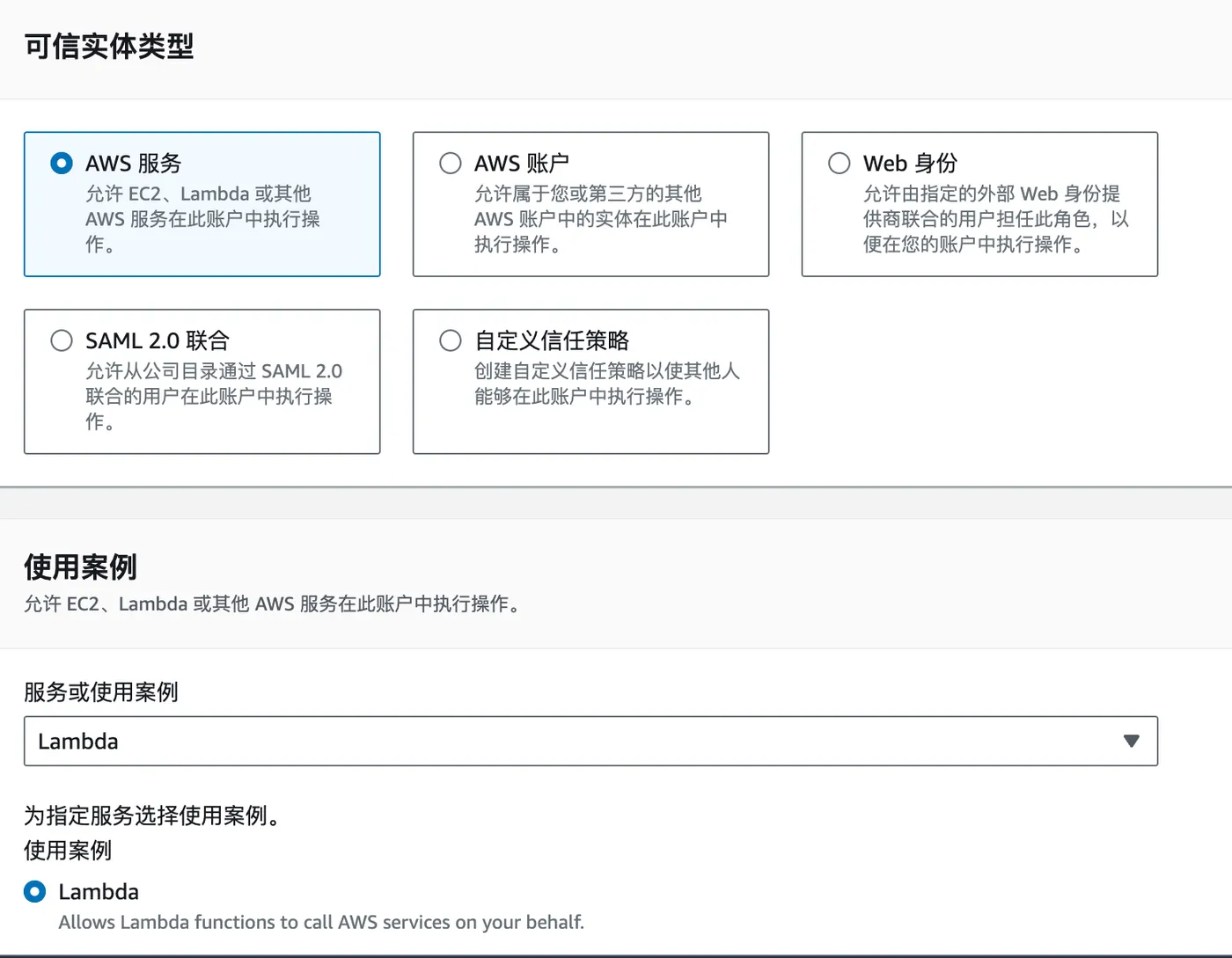 When adding permissions, search for and add CloudWatchLogsFullAccess and AmazonS3FullAccess.
For the role name, enter Lambda_S3ImageHandler, then complete the creation.
After creation, go to the role details > Trust relationships, and add the following:
{
    "Version": "2012-10-17",
    "Statement": [
        {
            "Effect": "Allow",
            "Principal": {
                "Service": [
                    "edgelambda.amazonaws.com",
                    "lambda.amazonaws.com"
                ]
            },
            "Action": "sts:AssumeRole"
        }
    ]
}
The Lambda role is now created successfully.
How It Works in Detail
Lambda@Edge is essentially a Lambda function deployed to CDN edge nodes.
There are 4 corresponding functions:
- Viewer Request
- Viewer Response
- Origin Request
- Origin Response
The flow for each CDN request is:
- First hits Viewer Request
- If there’s no CDN cache hit, it goes to Origin Request. For example, if the origin is S3, it fetches the file from S3 and returns an Origin Response
- Finally returns Viewer Response
- If the cache is hit, step 2 is skipped
For image processing, you only need 2 functions:
- Viewer Request — to preprocess the parameters
- Origin Response — to process the file when it’s returned from the origin
Uploading Functions
Login
After installing the AWS CLI, use aws configure to log in locally.
Note: the region must be set to us-east-1.
Publishing Functions
Create a local publish.sh script with the following content.
Replace xxxx with your own accountId.
For viewer-related functions, the max timeout is 5s and max memory is 128M.
For origin-related functions, the max timeout is 30s and max memory is 1024M.
runtime="nodejs18.x"
role_arn="arn:aws:iam::xxxx:role/Lambda_S3ImageHandler"
fucntion_hander="index.handler"

aws lambda create-function \
    --function-name S3ImageHandler_ViewerRequest \
    --zip-file fileb://dist/viewer-req.zip \
    --handler $fucntion_hander \
    --runtime $runtime \
    --timeout 5 \
    --memory-size 128 \
    --role $role_arn

aws lambda create-function \
    --function-name S3ImageHandler_OriginResponse \
    --zip-file fileb://dist/origin-res.zip \
    --handler $fucntion_hander \
    --runtime $runtime \
    --timeout 30 \
    --memory-size 1024 \
    --role $role_arn
After running the script, the functions are published successfully.
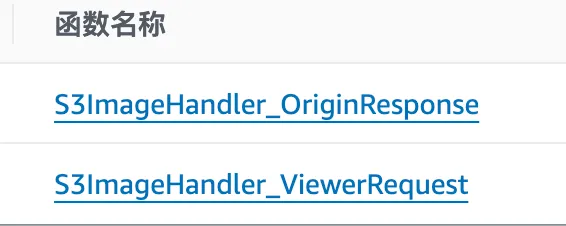
You can see the published functions in the Lambda console:
URL: https://us-east-1.console.aws.amazon.com/lambda/home?region=us-east-1#/functions
Make sure to switch to the us-east-1 region.
Updating Functions
Create a local script to update the functions:
aws lambda update-function-code \
    --function-name S3ImageHandler_ViewerRequest \
    --zip-file fileb://dist/viewer-req.zip \

aws lambda update-function-code \
    --function-name S3ImageHandler_OriginResponse \
    --zip-file fileb://dist/origin-res.zip \
Binding to CloudFront
Binding Viewer Request
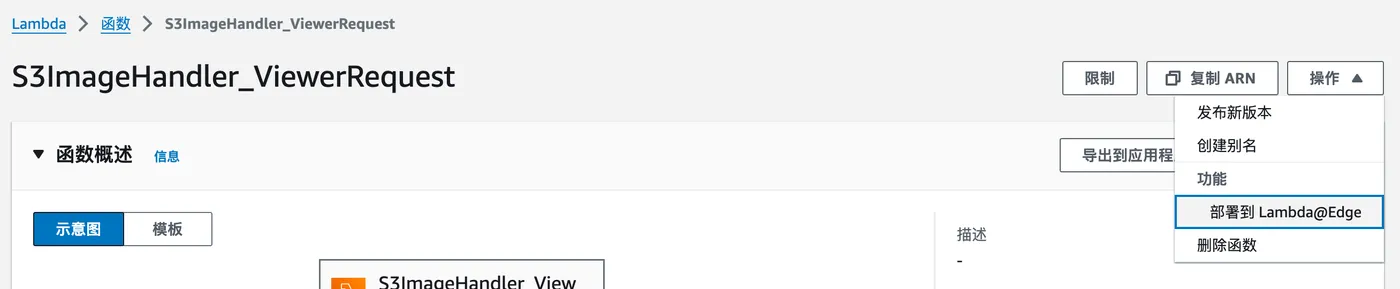
Go to the Viewer Request function details.
In the top right corner, there’s an option to deploy to Lambda@Edge.
Make sure you’re in the us-east-1 region.
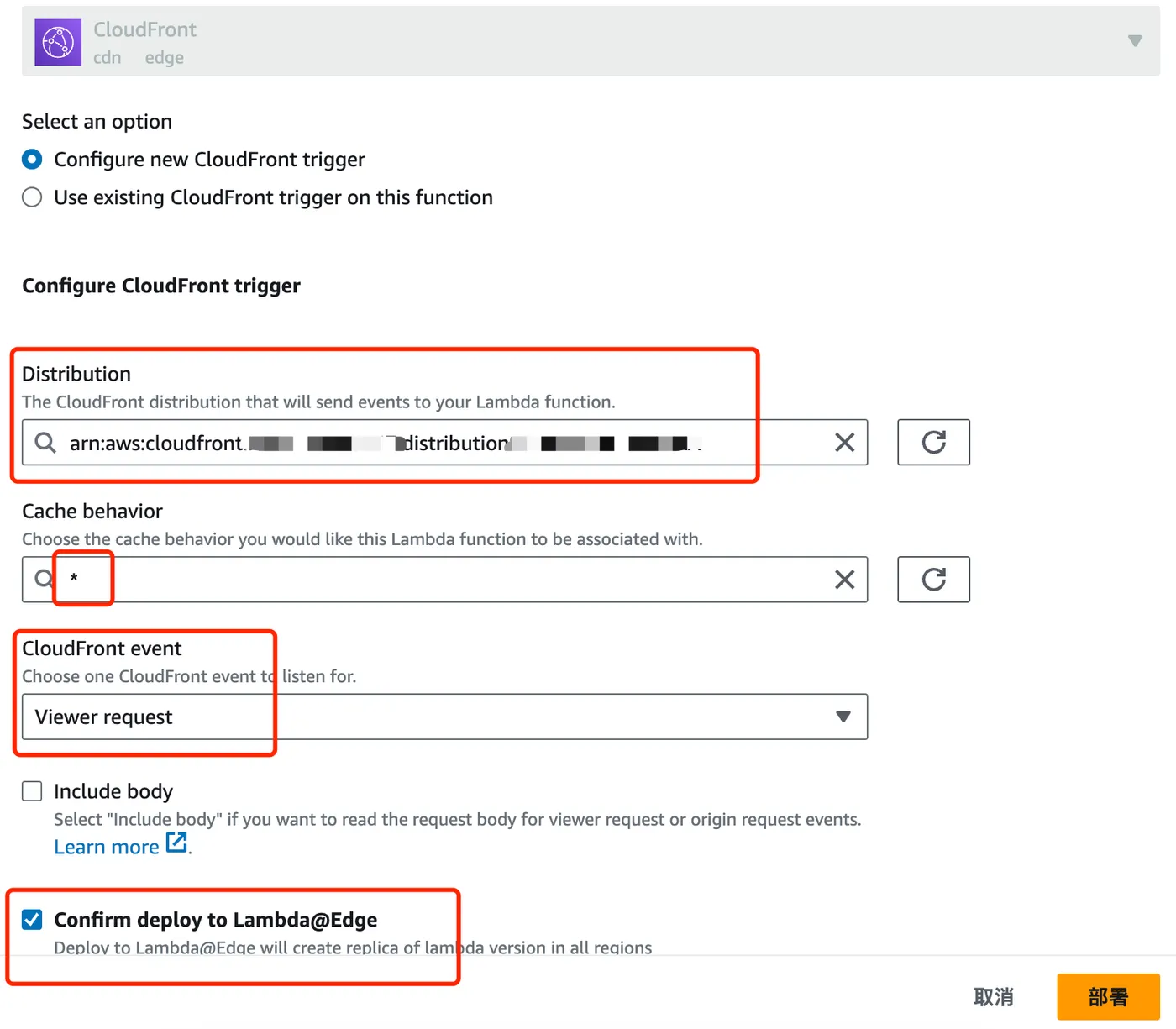
Fill in the options as shown and click “Deploy”.
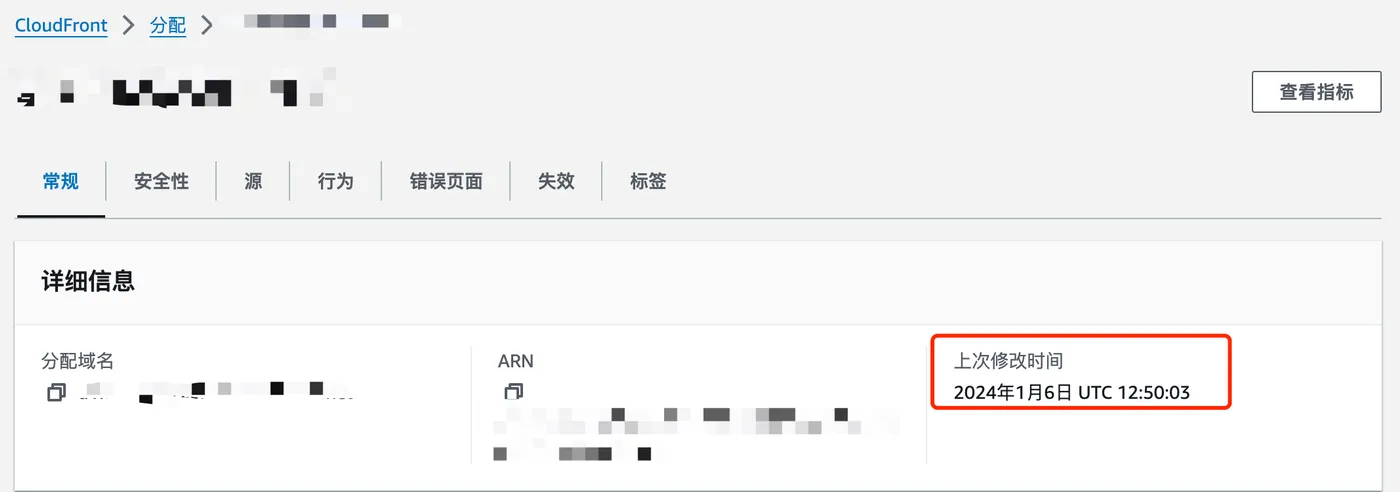
You can check the deployment progress in CloudFront.
The “Last modified” column will show “Deploying” during the process.
Once deployment is complete, it will display the actual timestamp.
Binding Origin Response Function
The binding method is the same as for Viewer Request.
Viewing Logs
During Lambda@Edge development,
a significant amount of time is spent on deploying functions,
since deploying Lambda to CDN edge nodes typically takes a few minutes.
Another time-consuming part is finding the logs.
Because CDN hits different edge nodes each time,
you have to search for logs across different regions — a painful process.
You can start by going to the function details > Monitoring > “View CloudWatch Logs”.
This will redirect you to CloudWatch Logs.
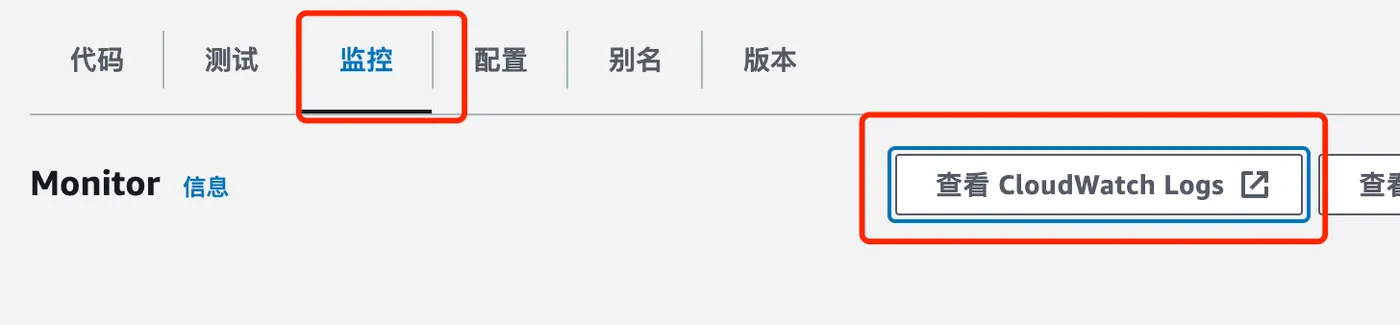
After the redirect, the painful part begins —
you need to search for logs across different regions.
Logically, requests from China should hit Tokyo, Hong Kong, or Singapore CDN nodes.
However, several times the requests actually hit France, which was quite surprising.
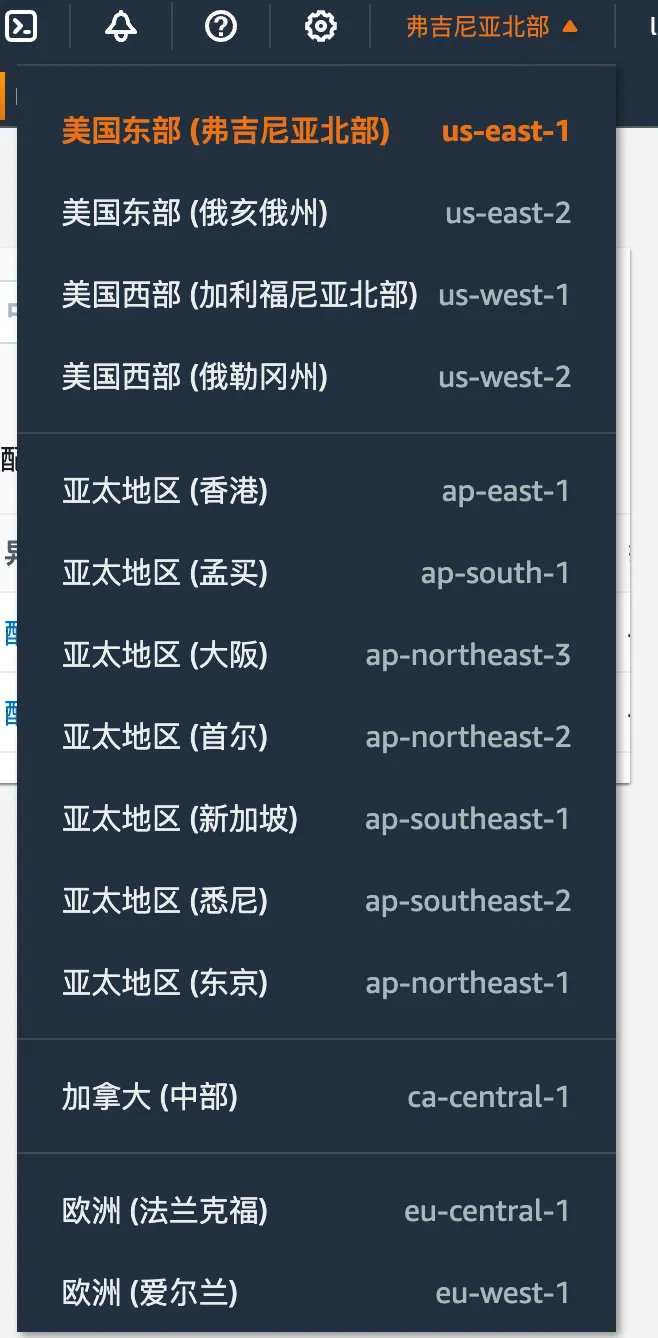
To accurately determine which CDN region was hit (i.e., where to look for logs),
edit the Origin Response function and add the following code:
// handler
exports.handler = async (event, context, callback) => {
  // res
  const response = event.Records[0].cf.response;
  response.headers['execution-region'] = [{ key: 'Execution-Region', value: process.env.AWS_REGION }];
};
After adding this response header, you can see the exact region in the response headers.
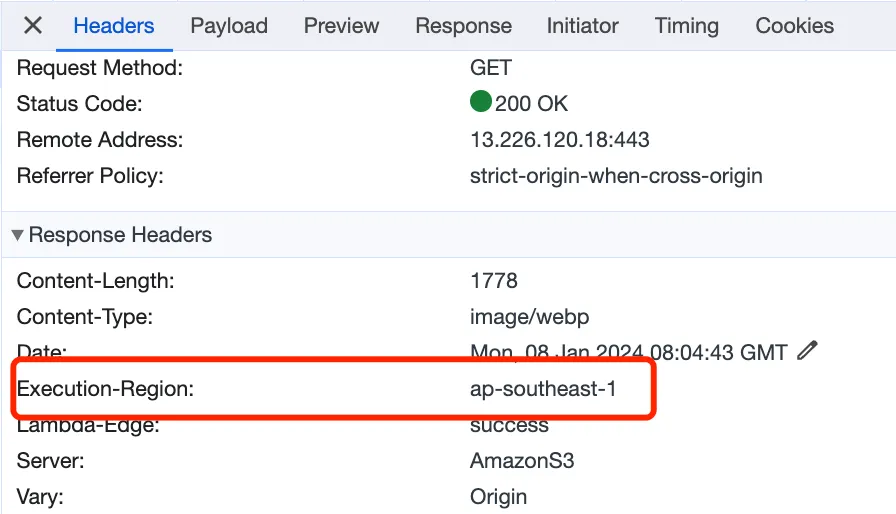
As shown above, this request hit the ap-southeast-1 region (Singapore).
You can then switch to the corresponding region in CloudWatch to view the logs.
Viewer Request
The Viewer Request function is relatively simple —
it only needs to handle the parameters.
One odd behavior I noticed:
the query string is normal in the Viewer Request,
e.g. for URL https://xxx.com/1.png?handler=yes&width=100,
the Viewer Request querystring shows handler=yes&width=100.
But by the time it reaches Origin Response, the querystring is empty.
So you need to process the querystring in Viewer Request
and append it to the URI. Here’s the code:
'use strict';

// qs
const qs = require('qs');

/**
 * handler
 * @param {s} event
 * @param {*} context
 * @param {*} callback
 */
exports.handler = (event, context, callback) => {
  // req
  const request = event.Records[0].cf.request;

  try {
    // qs
    const originQuerystring = request.querystring;
    if (!originQuerystring) {
      callback(null, request);
      return;
    }

    // qs obj
    const qsObj = qs.parse(originQuerystring);
    if (!qsObj || qsObj.handler !== 'yes') {
      callback(null, request);
      return;
    }

    // uri
    const originUri = request.uri;

    // add uri
    qsObj.uri = originUri;
    const finalURI = JSON.stringify(qsObj);

    // go
    request.uri = `/${finalURI}`;
    callback(null, request);
    return;
  } catch (error) {
    callback(null, request);
  }
};
Origin Response
Hitting a Previously Processed Image
If a previously processed image is found, the logic is:
- Get the bucket name
- Check if S3 already has a processed image, e.g. 1_width_100.png
- If it exists, use S3 getObject to retrieve the object
- Get the object’s buffer and return it as the response
Getting the Bucket
You can get the bucket name from the request’s origin:
const domainName = request.origin.s3.domainName;
const bucket = domainName.split('.')[0];
Checking if a Key Exists in S3
/**
 * isExists
 * @param {*} bucket
 * @param {*} key
 * @returns
 */
exports.isExists = async function (bucket, key) {
  const methodName = 'isExists';

  try {
    // input
    const input = {
      Bucket: bucket,
      Key: key,
    };
    logger.info(methodName, 'input', input);

    // res
    const command = new HeadObjectCommand(input);
    await client.send(command);
    logger.info(methodName, 'res', true);
    return true;
  } catch (error) {
    logger.info(methodName, 'res', false);
    return false;
  }
};
Getting an S3 Object
/**
 * getObject
 * @param {*} bucket
 * @param {*} key
 * @returns
 */
exports.getObject = async function (bucket, key) {
  const methodName = 'getObject';

  try {
    // input
    const input = {
      Bucket: bucket,
      Key: key,
    };
    logger.info(methodName, 'input', input);

    const command = new GetObjectCommand(input);
    return await client.send(command);
  } catch (error) {
    logger.info(methodName, 'error', error);
  }
};
Getting the Buffer from an S3 Object
/**
 * getObjectBuffer
 * @param {*} object
 * @returns
 */
exports.getObjectBuffer = function (object) {
  const methodName = 'getObjectBuffer';

  return new Promise(function (resolve, reject) {
    const byteArray = [];
    object.Body.on('error', (error) => {
      logger.info(methodName, 'error', error);
      reject(error);
    });
    object.Body.on('data', (chunk) => {
      byteArray.push(chunk);
    });
    object.Body.on('end', () => {
      const buffer = Buffer.concat(byteArray);
      logger.info(methodName, 'buffer');
      resolve(buffer);
    });
  });
};
Returning the S3 Object Buffer as a Response
/**
 * handlerResponseImg
 * @param {*} response
 * @param {*} object
 * @returns
 */
exports.handlerResponseImg = async function (response, buffer) {
  const methodName = 'handlerResponseImg';

  // base64
  const base64String = buffer.toString('base64');
  logger.info(methodName, 'base64String');

  // response
  response.status = '200';
  response.statusDescription = 'OK';
  response.body = base64String;
  response.bodyEncoding = 'base64';
  response.headers['content-type'] = [
    {
      key: 'Content-Type',
      value: 'image/webp',
    },
  ];
  response.headers['content-length'] = [
    {
      key: 'Content-Length',
      value: `${base64String.length}`,
    },
  ];
  response.headers['lambda-edge'] = [
    {
      key: 'Lambda-Edge',
      value: 'success',
    },
  ];
  return response;
};
No Previously Processed Image Found
If S3 doesn’t have a processed image (e.g. 1_width_100.png),
you need to use sharp to process the image, save it to S3, and then return the response.
Processing the Image
/**
 * formatImg
 * @param {*} originObject
 * @param {*} width
 * @param {*} height
 * @returns
 */
exports.formatImg = async function (originObject, width, height, bucket, finalKey) {
  const methodName = 'formatImg';

  try {
    // resize options
    const resizeOptions = {
      fit: 'cover',
    };
    if (width) resizeOptions.width = parseInt(width);
    if (height) resizeOptions.height = parseInt(height);
    logger.info(methodName, 'resizeOptions', resizeOptions);

    // format
    const buffer = await getObjectBuffer(originObject);
    const imgBuffer = await sharp(buffer).resize(resizeOptions).toFormat('webp').toBuffer();

    // put
    await putObject(bucket, finalKey, imgBuffer);
    logger.info(methodName, 'putObject success');
    return imgBuffer;
  } catch (error) {
    logger.info(methodName, 'error', error);
  }
};
Saving to S3
/**
 * putObject
 * @param {*} bucket
 * @param {*} key
 * @param {*} buffer
 * @returns
 */
exports.putObject = async function (bucket, key, buffer) {
  const methodName = 'putObject';

  try {
    // input
    const input = {
      Body: buffer,
      Bucket: bucket,
      Key: key,
    };

    const command = new PutObjectCommand(input);
    return await client.send(command);
  } catch (error) {
    logger.info(methodName, 'error', error);
  }
};
Sharp-Related Issues
Slow Installation
Since sharp has large dependencies,
installation can be slow in China. You can use the following method:
npm_config_sharp_binary_host="https://npmmirror.com/mirrors/sharp" \
npm_config_sharp_libvips_binary_host="https://npmmirror.com/mirrors/sharp-libvips" \
npm i sharp
Large Package Size
After installing sharp and running the update script,
the Lambda function package was too large. Looking at node_modules,
sharp had installed packages for all platforms.
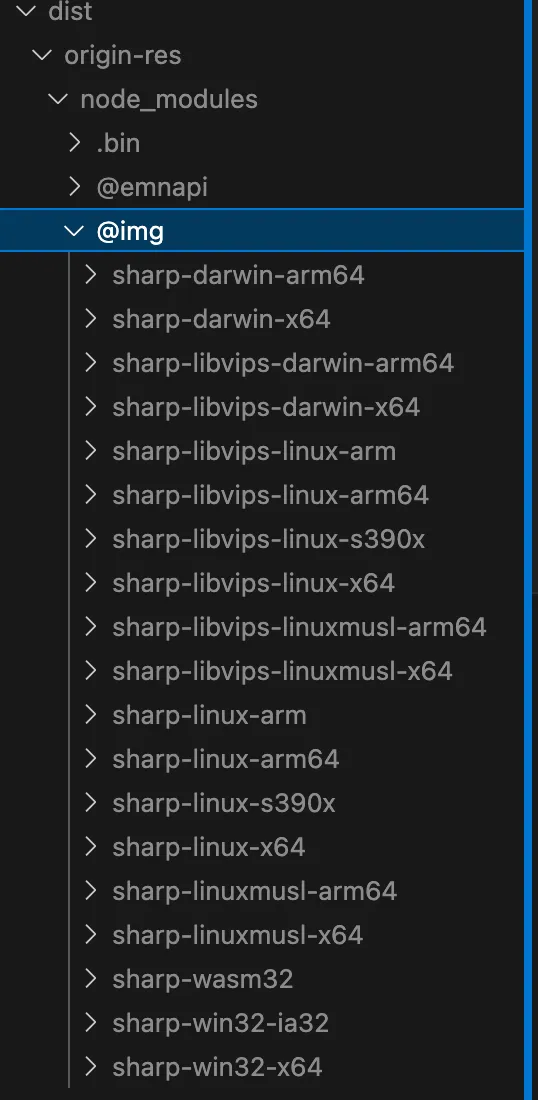
The official suggestions didn’t resolve this, so I wrote a script to manually remove unnecessary platform packages:
// qiao
const { lsdir, rm } = require('qiao-file');

// cosnt
const dist = './dist/origin-res/node_modules/@img/';
const excludeNames = ['sharp-linux-x64', 'sharp-libvips-linux-x64', 'sharp-wasm32'];

// clean sharp
cleanSharp();
async function cleanSharp() {
  // ls
  const dirs = await lsdir(dist);
  const excludeFolders = dirs.folders.filter((folder) => {
    return folder.name.indexOf('sharp-') > -1;
  });

  // del
  for (let i = 0; i < excludeFolders.length; i++) {
    const folder = excludeFolders[i];
    console.log(folder.name);

    if (excludeNames.includes(folder.name)) {
      console.log('skip');
    } else {
      const res = await rm(folder.path);
      console.log('rm', res);
    }
  }
}
Final Result
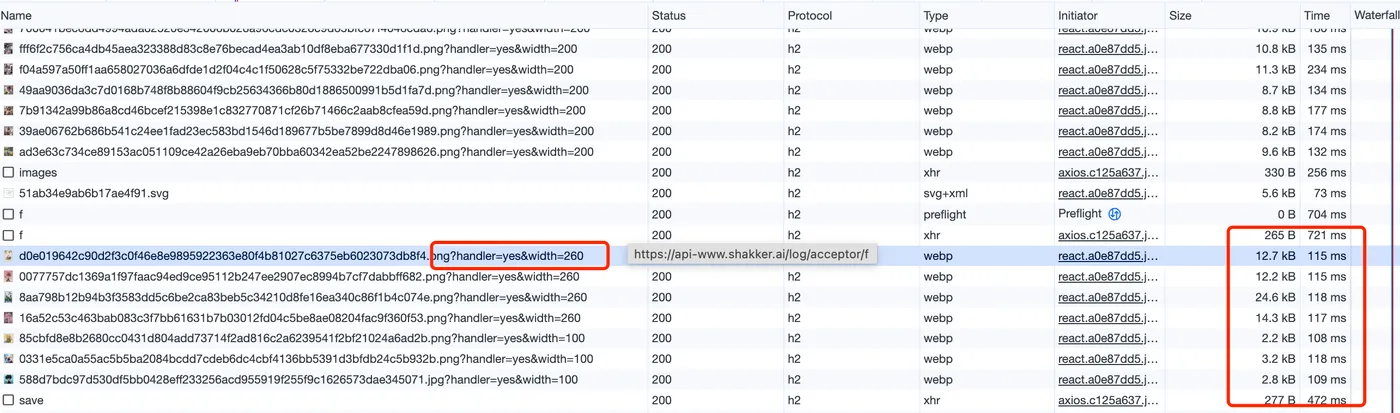
After processing, the images are:
- Resized by width
- Converted to webp format